

Refund or exchange an item
Find the original sale, choose what comes back, and give the money back the way the customer paid.
Find the sale
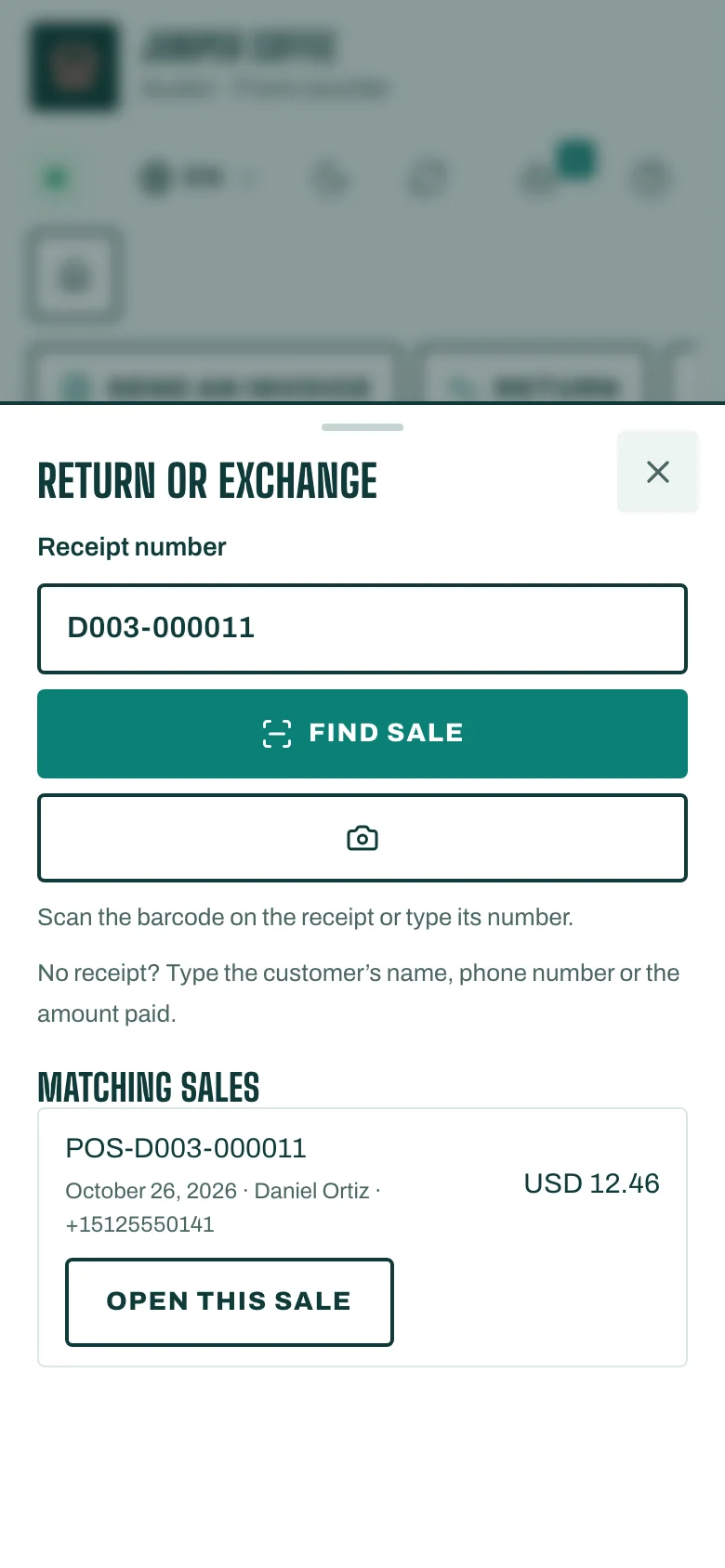
- On the Till, tap Return. You see Return or exchange.
- Scan the barcode on the receipt, or type the Receipt number. Tap Find sale.
- No receipt? Type the customer's name, phone number or the amount paid. Pick the sale from Matching sales and tap Open this sale.
Choose what comes back
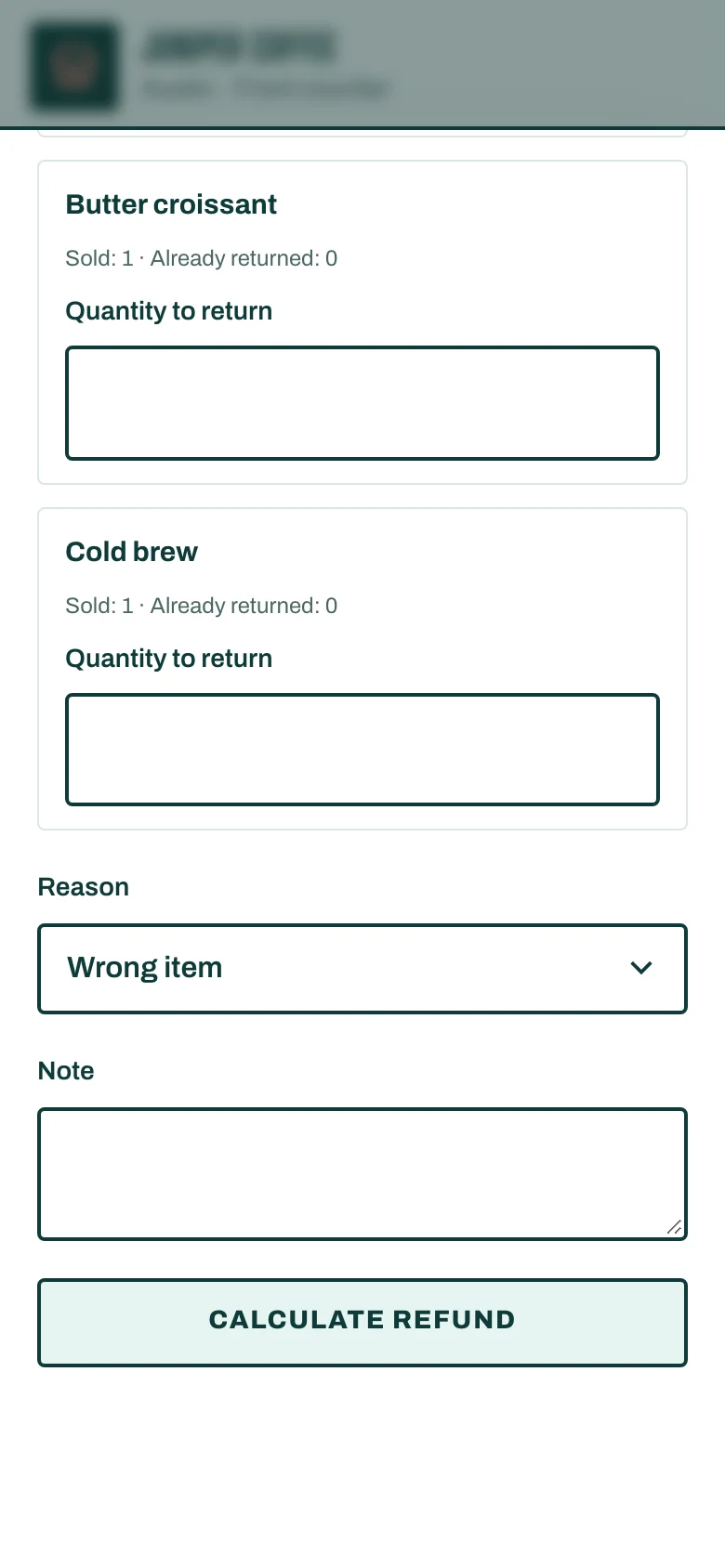
- For each item, set the Quantity to return.
- Set the Item condition:
- Back to stock if you can sell it again.
- Damaged, do not restock if you can't.
- Pick a Reason, for example Faulty or Changed mind.
- Tap Calculate refund.
Give the money back
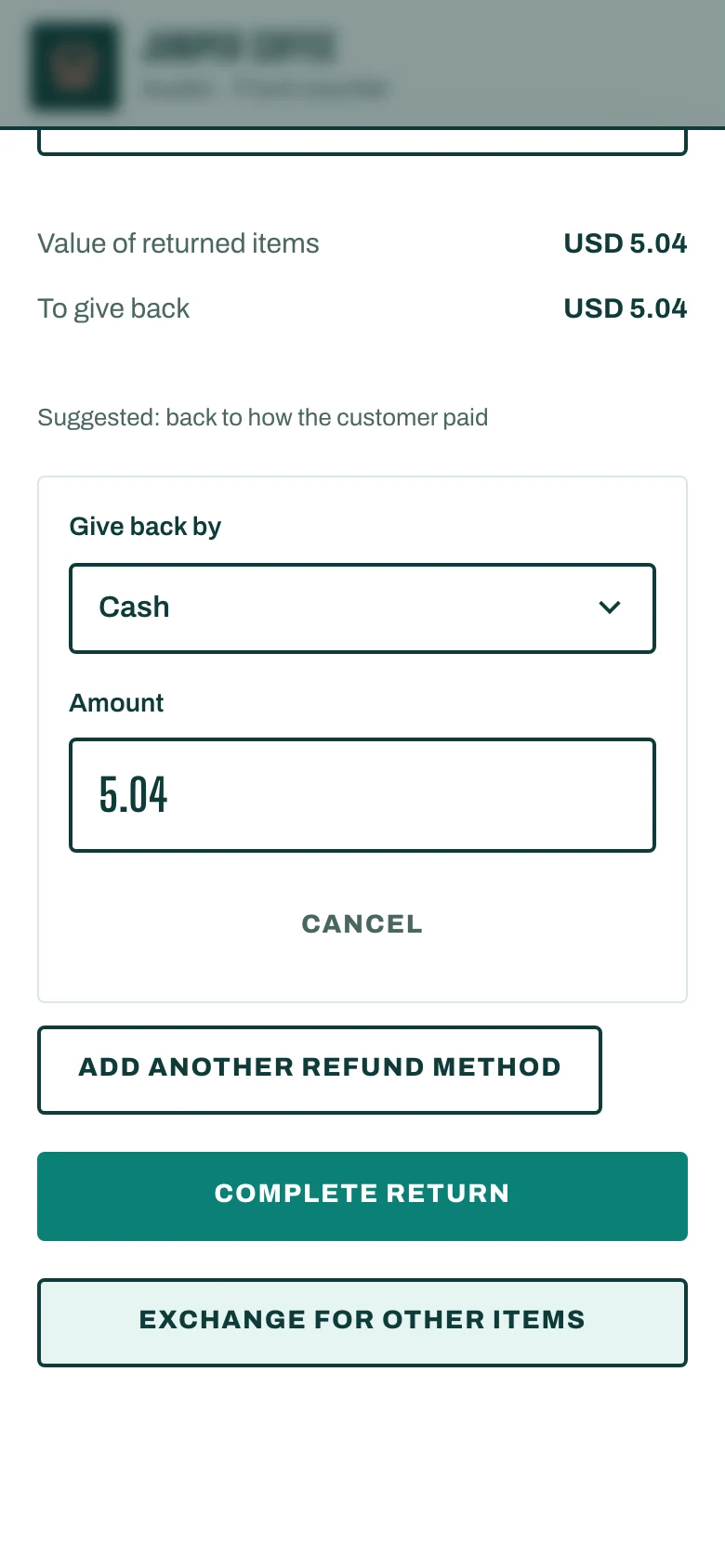
- Under Give back by, the Till suggests the way the customer paid. Tap Use suggestion, or choose another way: Cash, Store credit or a Gift card.
- To split the refund, tap Add another refund method.
- Tap Complete return. You see Return completed, and the Till prints or sends the credit note.
Exchange for other items
- Find the sale and choose what comes back, as above, then tap Calculate refund.
- Instead of Complete return, tap Exchange for other items. The Till shows the Exchange credit.
- Add the new items to the cart.
- Tap Complete exchange and settle the difference:
- Customer pays the difference if the new items cost more,
- Give back the difference if they cost less,
- or Keep the difference as store credit.
To stop, tap Cancel exchange.
When a manager has to approve
The Till shows A manager must approve this return. when, for example, the return is above your refund limit, outside the return period, or the money goes back by a different method. A manager enters their PIN on the Till, or you send the request to a manager's phone.