

Give a discount
Take an amount or a percentage off the whole sale or one item, with a reason.
On the whole sale
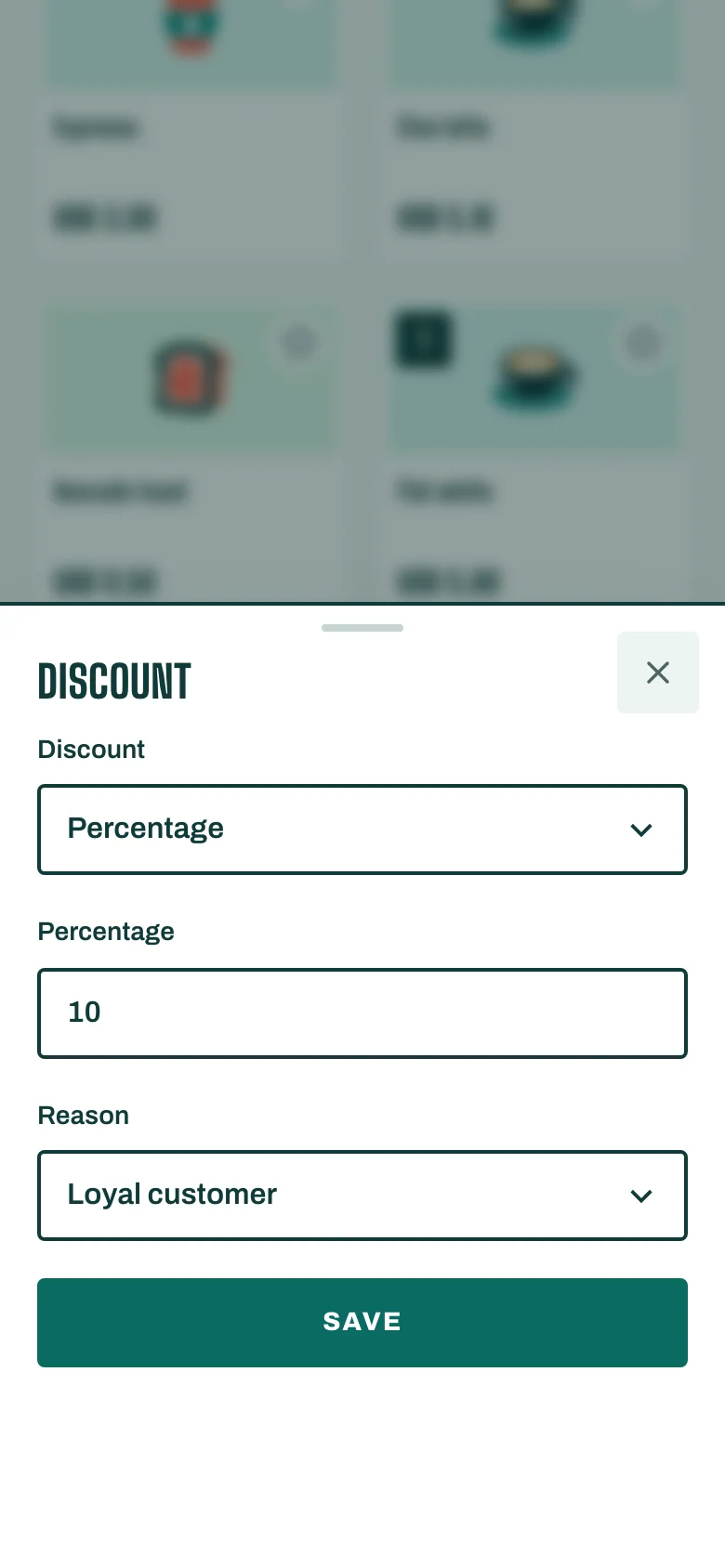
- With items in the cart, tap Discount.
- Choose Amount or Percentage, and type the value.
- Give a reason. If your business has a list of reasons, pick one under Reason, or choose Other (write a reason). Otherwise type it in Discount reason.
- Tap Save. The new total shows in the cart.
To remove the discount, open Discount again and choose No discount.
On one item
- Tap the item in the Cart.
- Open Item discount and enter the amount or percentage.
- Choose a Reason and save.
When a manager has to approve
If the discount is above what your role allows, the Till shows This discount needs a manager's approval.
- Manager here: the manager picks their name, types their Manager PIN and taps Approve.
- Manager away: tap Ask remotely, add a note if you like, and tap Send request. The manager approves from their own phone, and the Till continues by itself.
Every discount is saved with its reason and who approved it, and shows in the shift's closing report.