

Take a card payment
Charge a card on a connected terminal, record a payment from your own card machine, or let the customer pay by QR code.
The money goes to your own payment account. STAK never stores card numbers.
How you take the card depends on what your business has set up.
With a card terminal connected to STAK
- Ring up the sale and tap Pay.
- Choose the Card terminal, then tap Send amount to terminal.
- The Till shows Waiting for the customer on the terminal… while the customer taps, inserts or swipes.
- When the terminal says Approved, the sale completes on its own. If it says Declined, ask for another card or another way to pay.
With your own card machine (not connected)
Use this when you take the card on a separate machine from your bank.
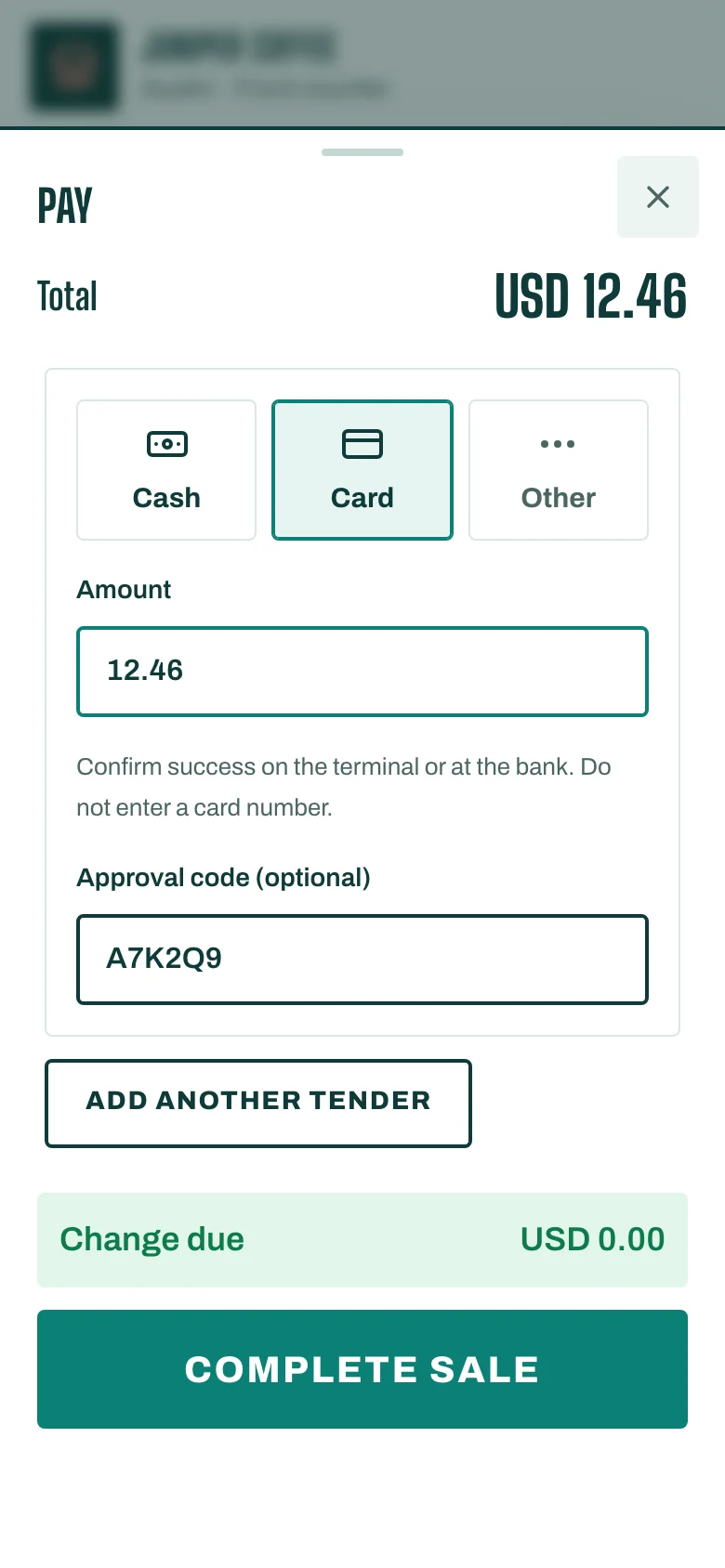
- Ring up the sale and tap Pay.
- Choose Card — external terminal.
- Charge the card on your machine and wait for it to approve.
- Type the approval number from the machine's slip in Approval or transfer reference. Never type the card number.
- Tap Complete sale.
With a QR code
When no terminal is connected, the customer can pay with their own phone.
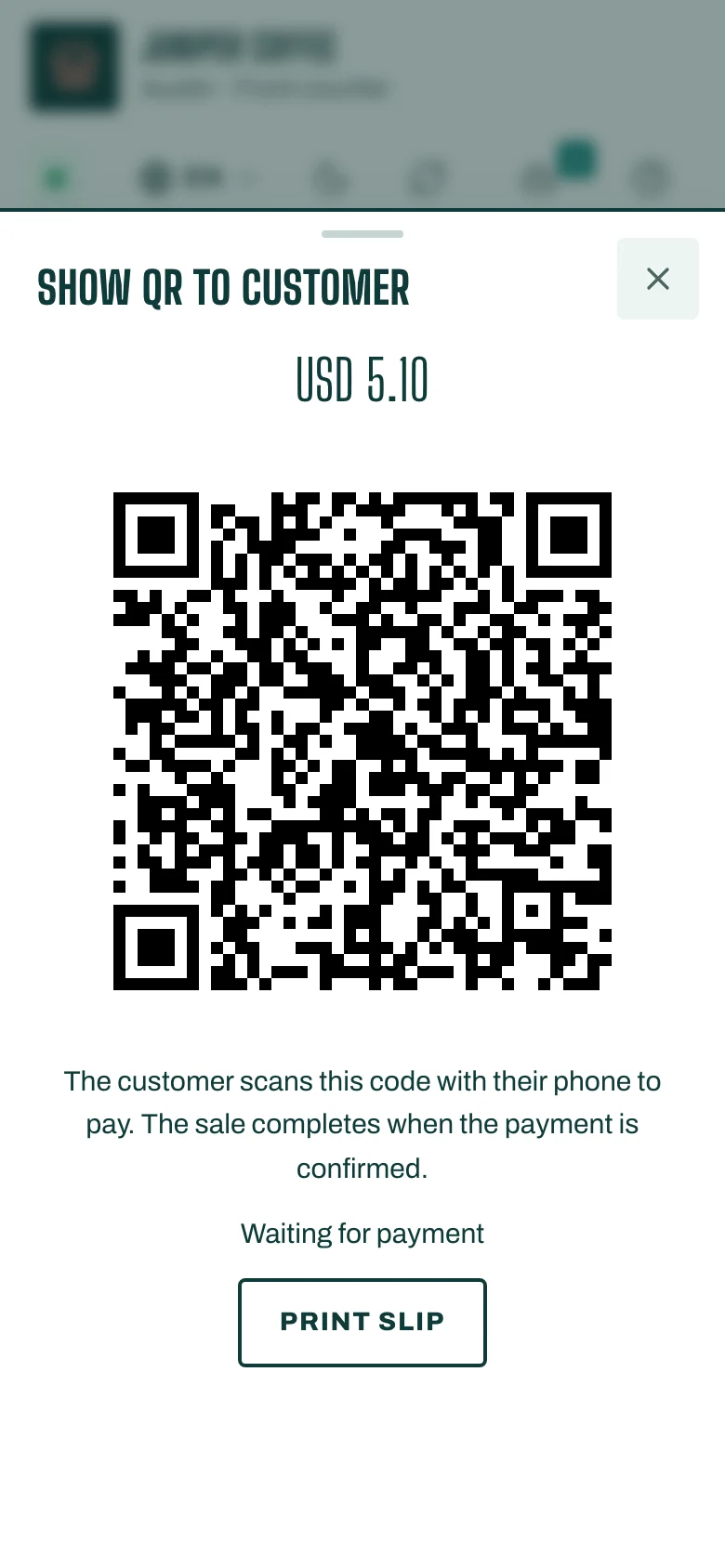
- Tap Pay, then Record sale and show QR.
- Turn the screen to the customer. They scan the code and pay on their phone.
- The Till shows Waiting for payment, then Paid. Sale complete.
If the customer paid on a separate card machine instead, tap Paid on a separate card machine.
Split a payment
- In the payment screen, enter the first amount, for example the cash the customer gives you.
- Tap Add another tender and choose the card for the rest.
- Tap Complete sale when the total is covered.
Good to know
- Your business connects its own payment provider in Payment settings. Until it does, use your own card machine or cash.
- Some payment methods (for example Apple Pay, Google Pay or local cards) only appear in countries where your provider offers them.