

Check patients in and triage them
See who is here and who is waiting too long, record vitals at triage, and send each patient to the doctor and then to pay.
Open the clinic desk
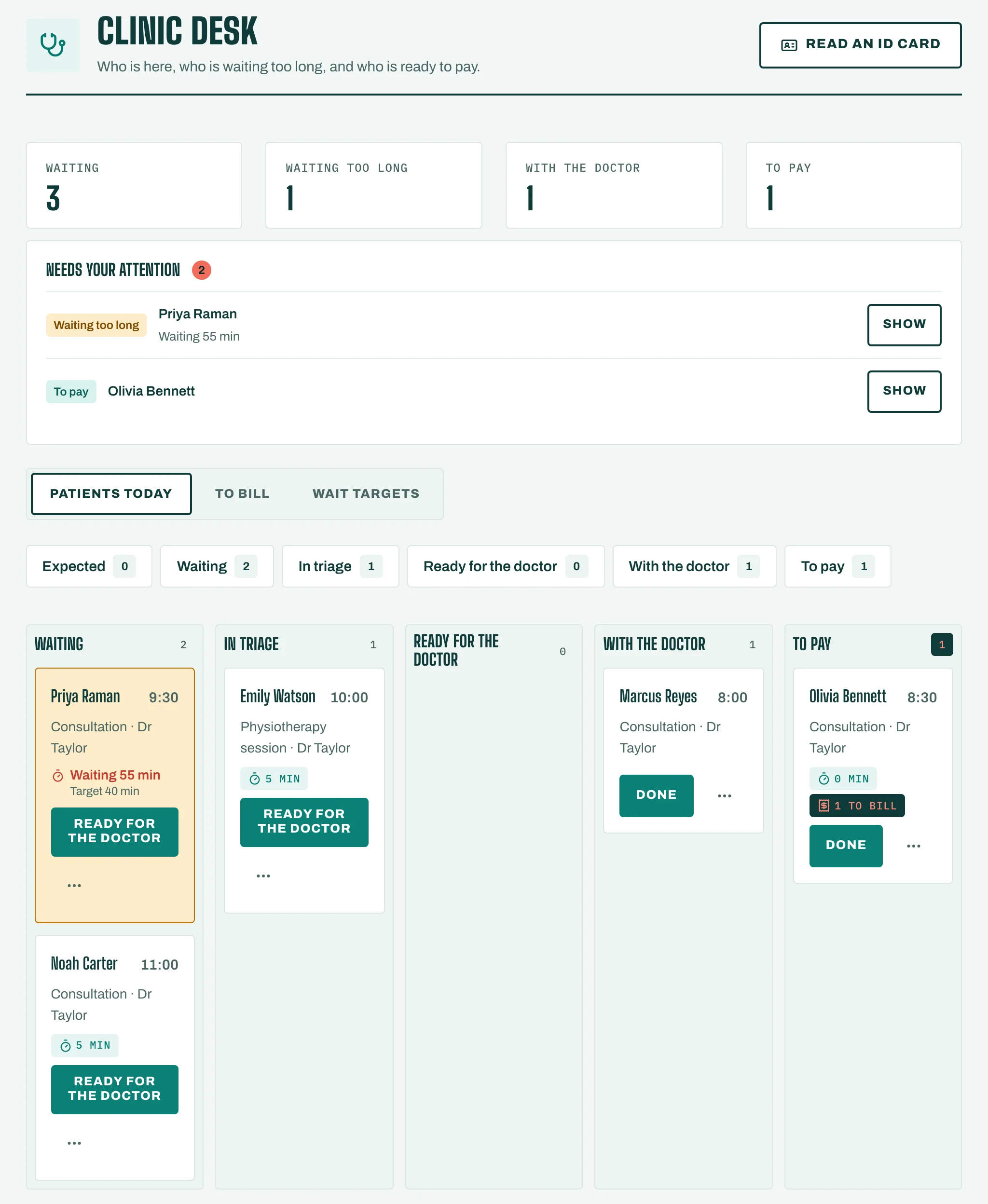
In the menu, tap Clinic desk. Patients today shows today's appointments for this branch, each with its stage: Expected, Waiting, In triage, Ready for the doctor, With the doctor, To pay, Done or Left.
Move a patient through the visit
- When the patient comes in, tap Arrived. Patients who checked in on their phone show Checked in online.
- Tap Start triage (see below), or skip it with Ready for the doctor.
- When the doctor is free, tap Call in, and enter the Room if you use rooms.
- After the visit, tap Send to pay. The patient moves to To bill.
- Tap Done when they leave. If someone leaves before being seen, tap Left without being seen.
Triage
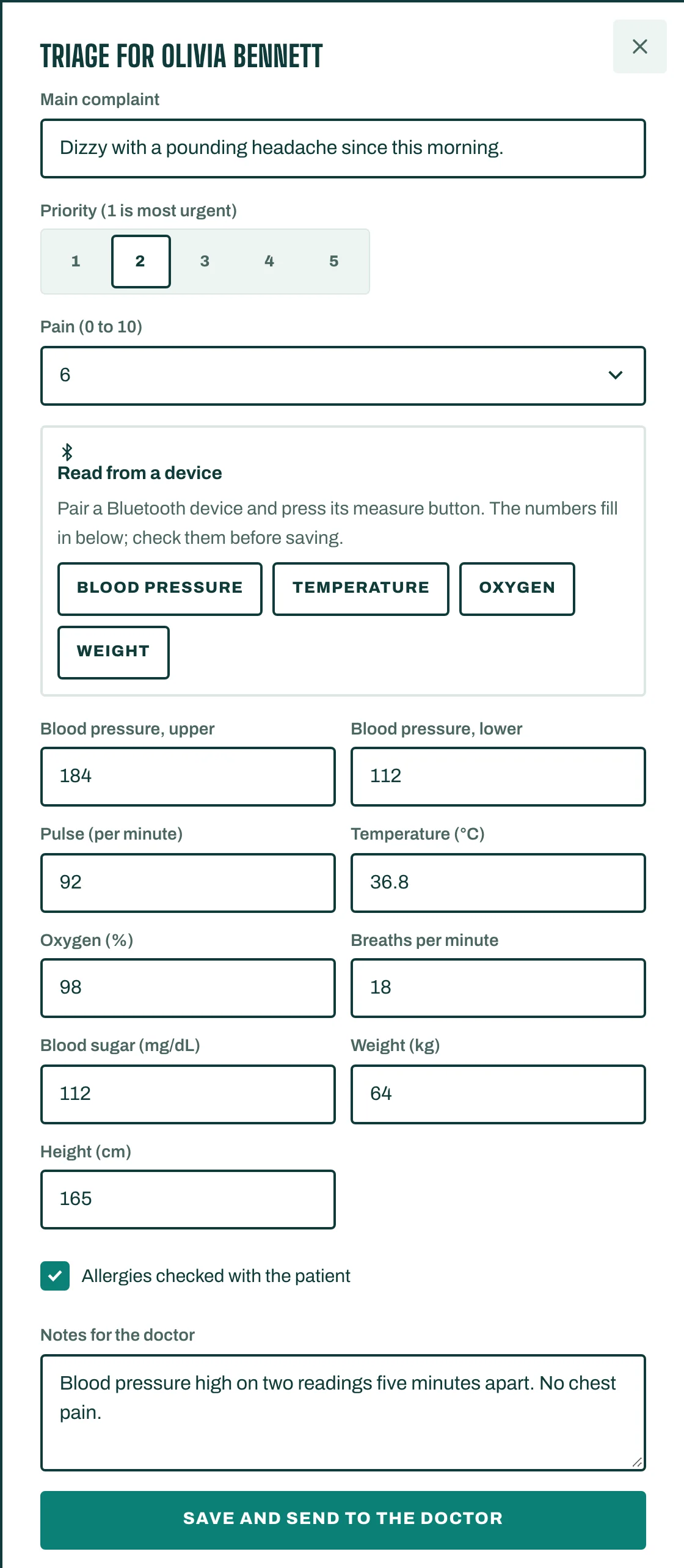
- Tap Start triage. Fill in the Main complaint and the Priority (1 is most urgent).
- Record the vitals you take: Pain (0 to 10), Blood pressure, upper and lower, Pulse (per minute), Temperature (°C), Oxygen (%), Breaths per minute, Blood sugar (mg/dL), Weight (kg) and Height (cm).
- Tick Allergies checked with the patient and add Notes for the doctor.
- Tap Save and send to the doctor.
STAK flags values out of range, such as High blood pressure or Low oxygen, and shows Check vitals before entering on the patient's card. The doctor's visit note starts from these vitals.
When a wait runs long
Under Wait targets, set the minutes for each stage and tick Alert managers when a wait passes its target. The desk then shows Waiting too long and Needs your attention. On a waiting patient, tap More actions, then Send an apology, By WhatsApp or By SMS.