

Write a prescription
Prescribe from a signed visit, let STAK check allergies, interactions and doses, then print it or send it to the patient's phone.
A prescription belongs to a signed visit. Sign the visit first.
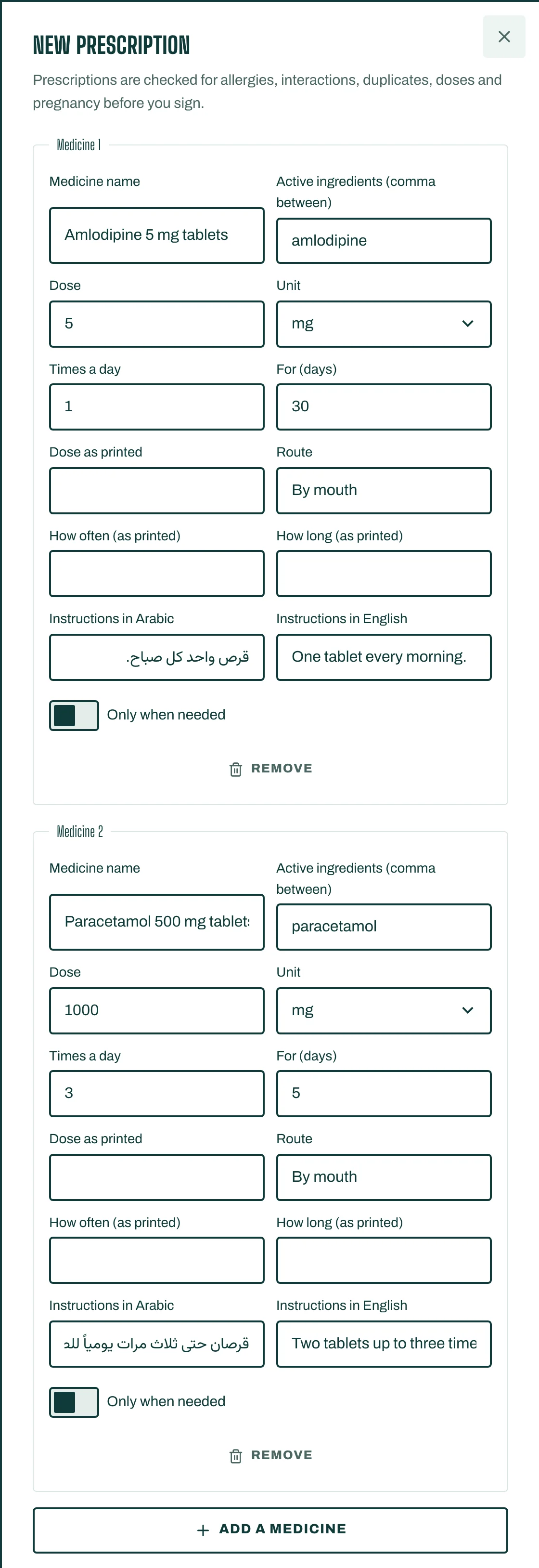
- In the patient's file, tap Prescription on the visit, or open Medicines and tap New prescription.
- For each medicine, choose From the formulary (your clinic's list), or Not in the formulary and type the Medicine name and Active ingredients (comma between).
- Fill in the Dose, Unit, Times a day and For (days), or tick Only when needed. Choose the Route.
- Add Instructions in Arabic and Instructions in English for the patient.
- For a long-term medicine, tick Long-term medicine (refills allowed) and set the Refills allowed.
- Tap Add a medicine for the next one.
The safety check
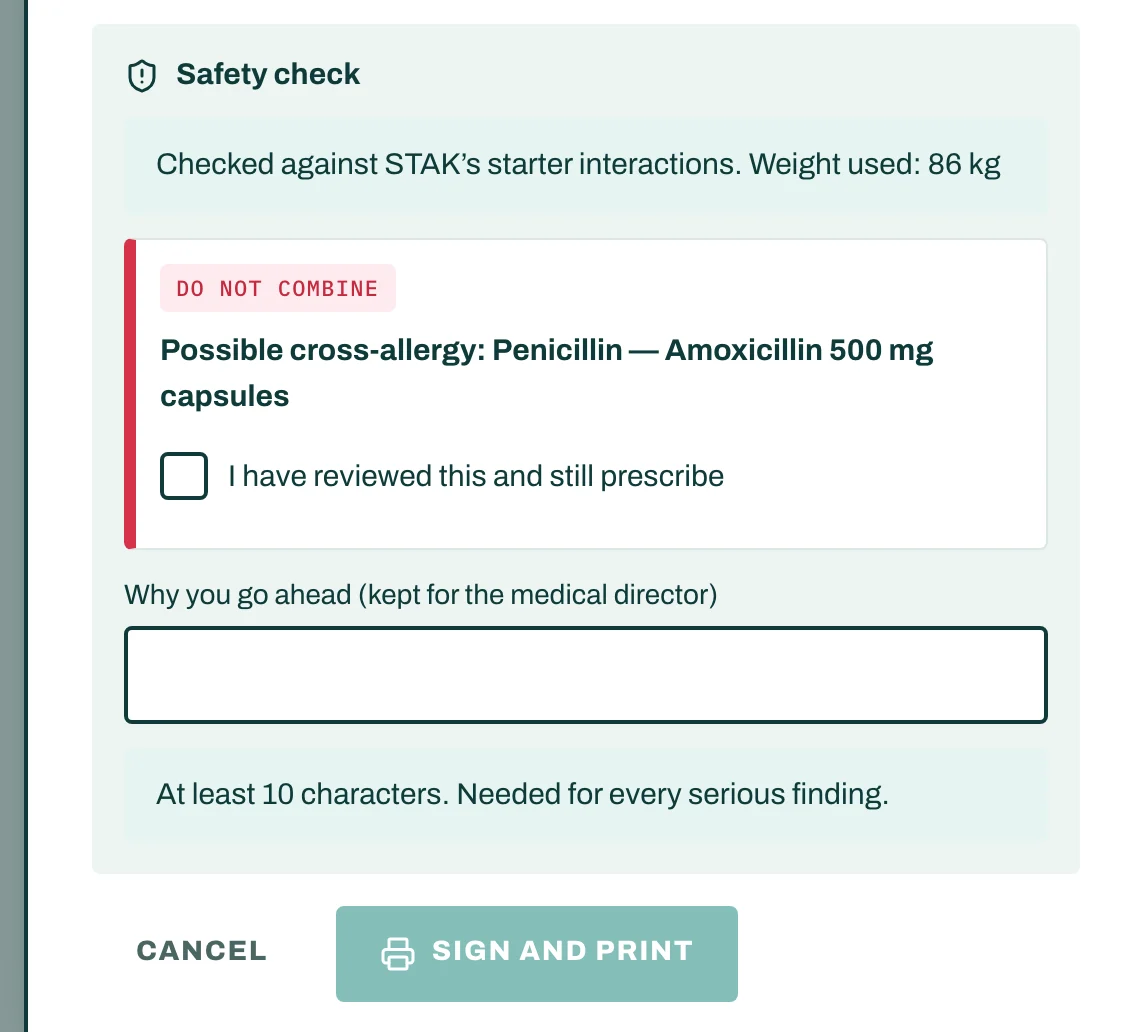
Before you sign, STAK checks the prescription for allergies, interactions, duplicates, doses and pregnancy, using the patient's weight when one is recorded. Safety check lists anything it finds. If there is nothing, you see No safety findings for these medicines.
To go ahead past a serious finding, tick I have reviewed this and still prescribe and write Why you go ahead (kept for the medical director), at least 10 characters.
Sign and share
- Tap Sign and print. You see Prescription signed.
- To send it to the patient's phone, tap Share with the patient. Set Valid for (days) and tap Create the link, then Copy link. The patient opens it on their phone, and any pharmacy can scan its code.
The warnings check only what was entered. The prescribing doctor still reviews allergies, interactions and doses.