

Add staff and give access
Give each staff member a role, their branches and a PIN for the shared till, or invite them with their own account.
Till, kitchen-screen, staff-app and driver users are free and unlimited. You pay only for people who use the back office.
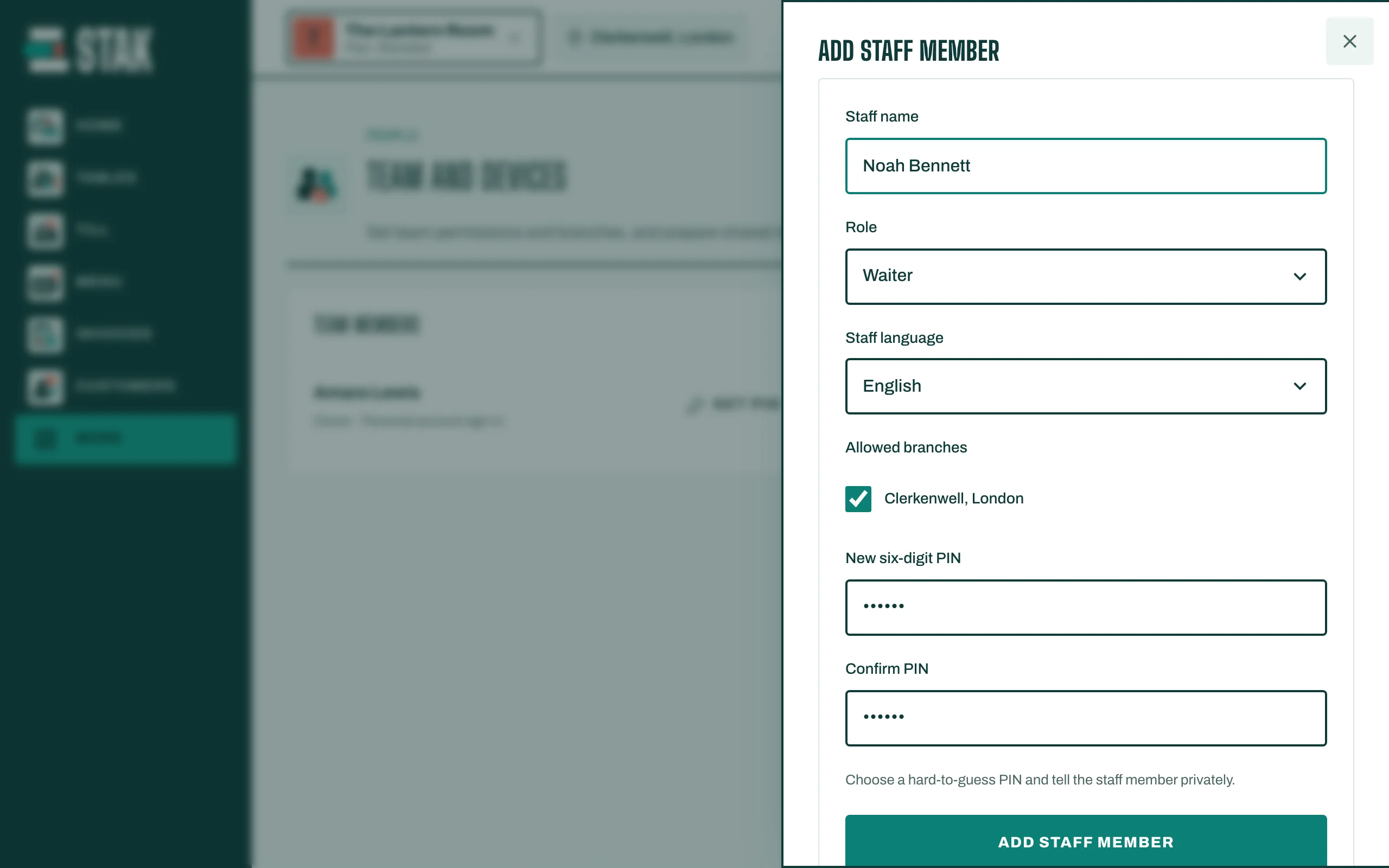
Add a staff member for the till
- Tap More, then Team and access. You see Team and devices.
- Tap Add staff member.
- Type the Staff name, choose the Role and the Allowed branches, and the Staff language their screens show in.
- Set a New six-digit PIN and Confirm PIN. Tell the staff member their PIN privately.
- Tap Save.
To limit when someone can sign in, set Access starts and Access ends.
Invite someone with their own account
For a manager or anyone who works from their own phone:
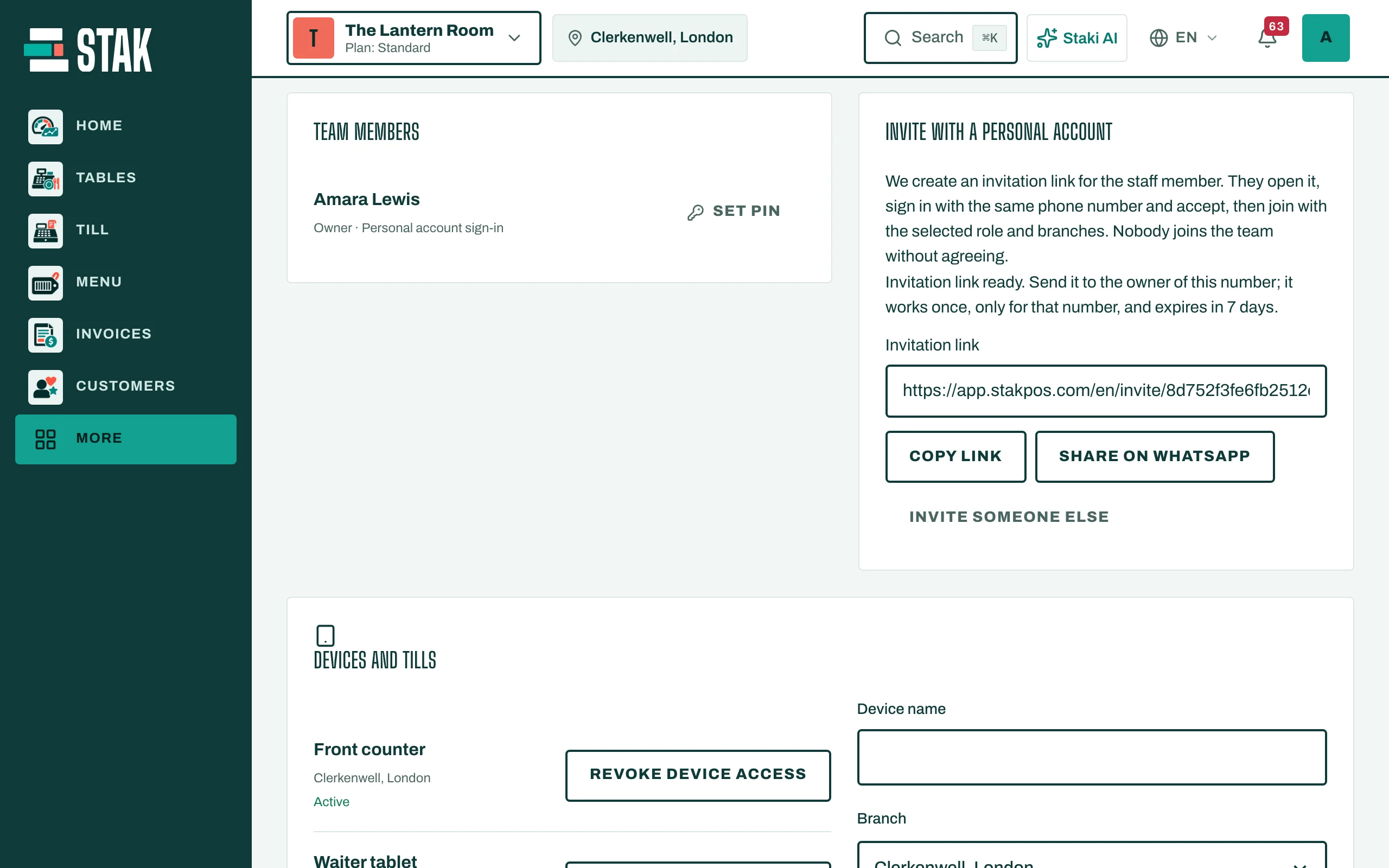
- In Team and access, go to Invite with a personal account.
- Type the Staff member's phone number, choose the role and branches, and tick the confirmation.
- Tap Create invitation link, then Copy link or Share on WhatsApp.
The link works once, only for that phone number, and expires in 7 days.
Set up a shared till device
- On the tablet at the counter, open Team and access, then Devices and tills.
- Under Whose device is this?, choose A shared counter device. Staff will sign in with their PIN.
- Tap Register this device. Your owner sign-in ends on this device, and the staff sign-in screen opens.
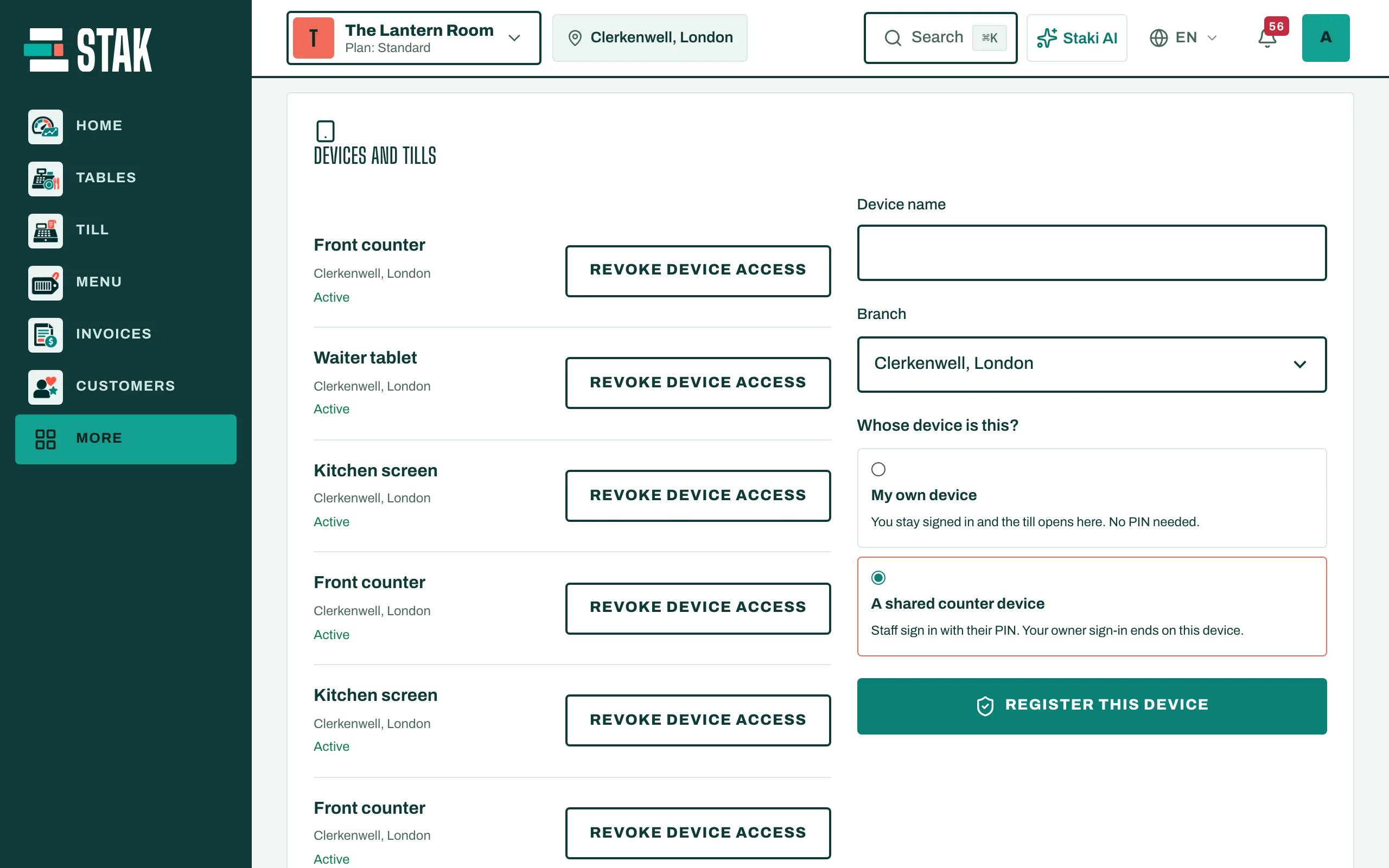
To stop a lost or old device, tap Revoke device access. Its session ends at once.