

Add a product with a photo
Create the product once in Items; it sells on the till and in your online store, with up to 12 photos.
You add a product once, in Items. The same product sells on the till and in your online store.
Create the product
- Tap Items in the menu, then New item.
- Type the name.
- Type the Price, the full price as customers pay it.
- Pick a Category if you use them, and add a description if you like.
- Save.
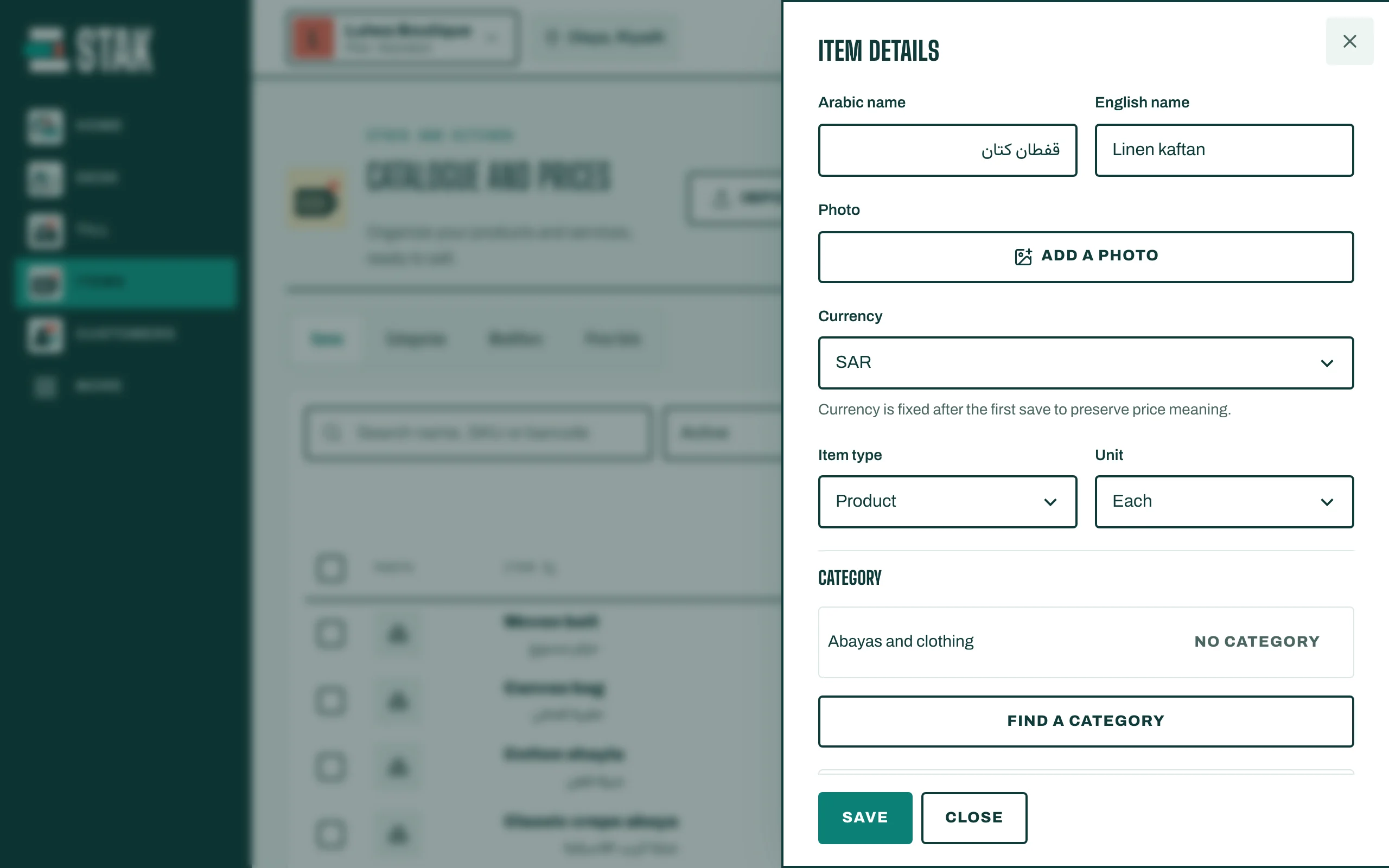
Add the photo
- Open the item you just saved. (Photos can only be added after the item is saved.)
- Tap Add a photo and choose a JPEG or PNG up to 5 MB.
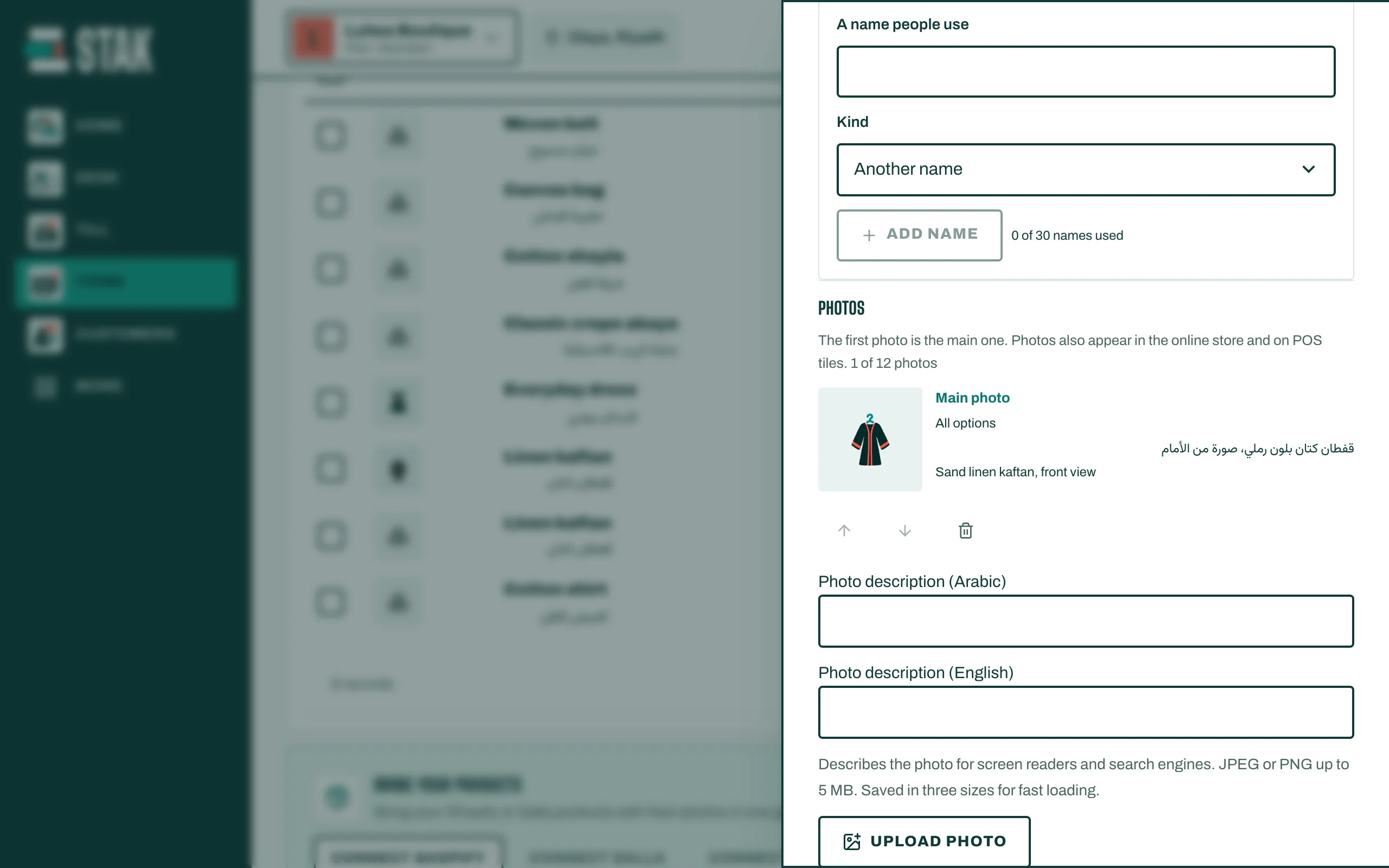
- The first photo is the main one. It shows on the till's buttons and in the online store.
More photos, logo and cover
For a richer shop page:
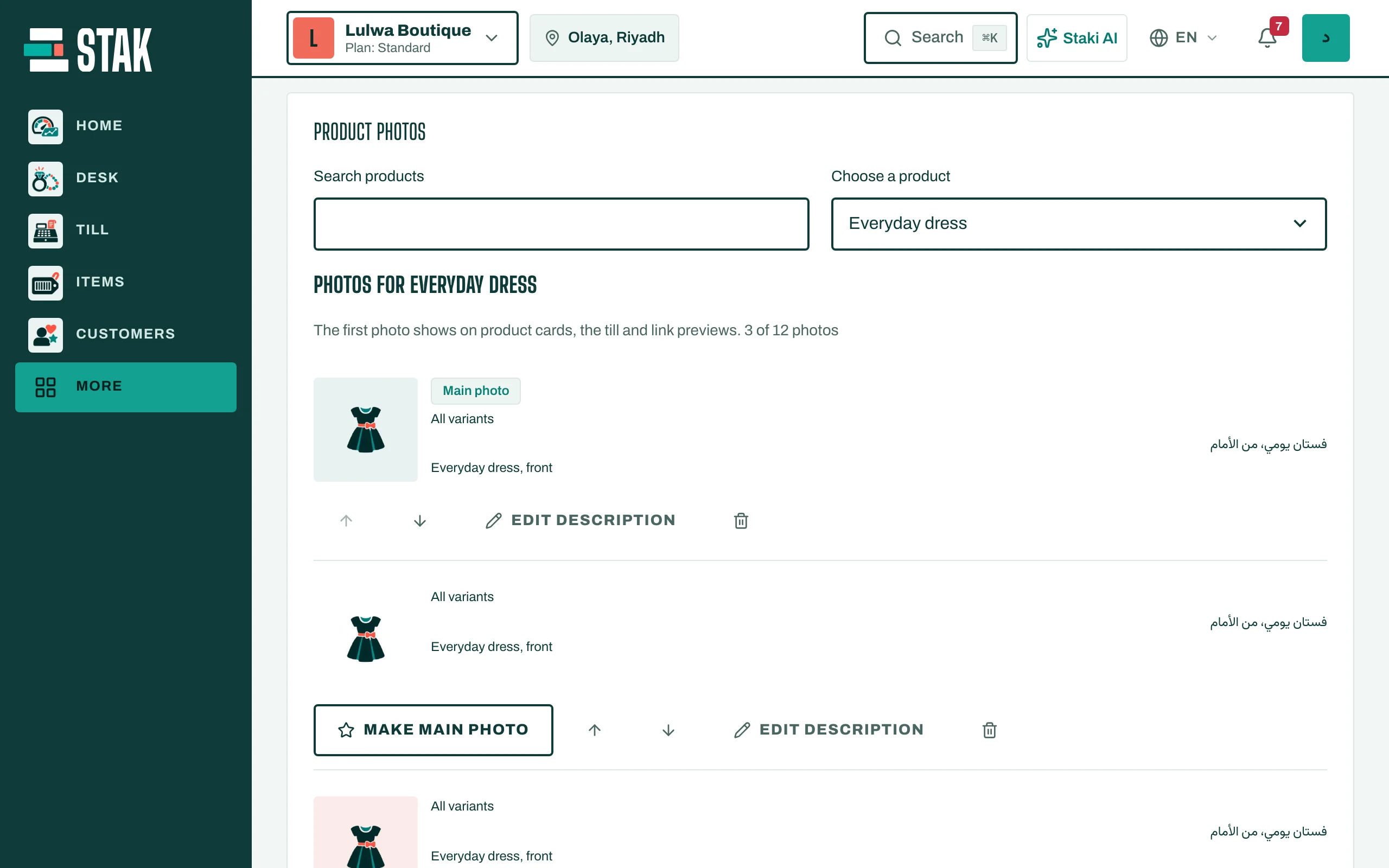
- In Store, open Photos and delivery zones.
- Under Product photos, choose the product. Add up to 12 photos with Upload photo, and tap Make main photo on the one customers should see first.
- Add a Photo description so screen readers and search engines understand the photo.
- On the same page, add your Store logo and a Cover photo.
Show it in the shop
New products don't appear online by themselves. In Store, tick the product under Published products and tap Save settings.