

Sign a lease
Write the lease, send it to the tenant to sign on their phone, and the rent schedule starts by itself.
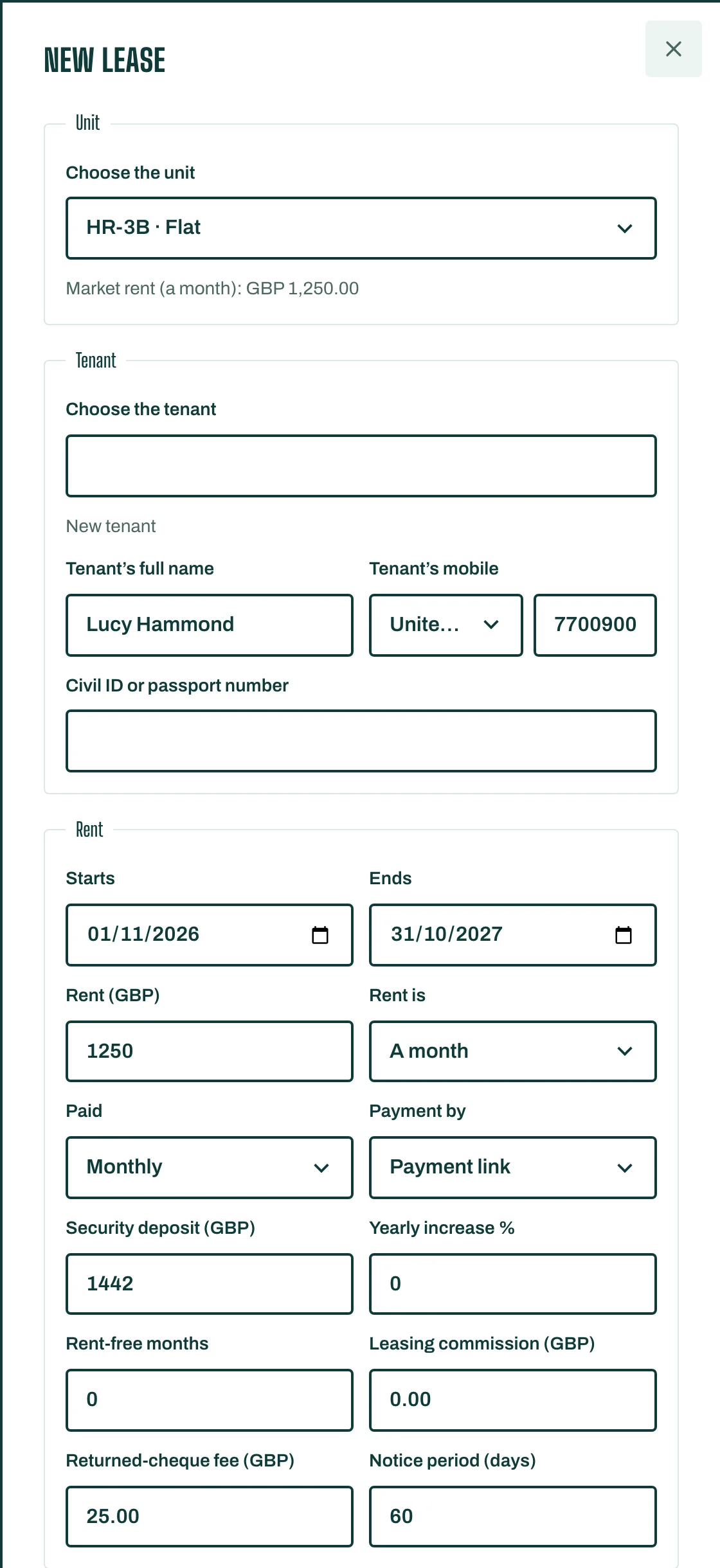
- Open Leases and tap New lease. You can also tap Let this unit on a vacant unit.
- Under Tenant, Choose the tenant, or tap New tenant and enter the Tenant's full name and Tenant's mobile.
- Choose the unit, then set when the lease Starts and Ends.
- Set the Rent: Rent is A month or A year, and how often it is Paid (Monthly, Every 3 months, Every 6 months or Once a year).
- Choose Payment by: Payment link, Bank transfer or Cash.
- Add what applies: Security deposit, Yearly increase %, Rent-free months, Leasing commission, Notice period (days), a Guarantor, and the Governing language (Arabic or English).
- Under Clauses, tap Add your own clause to write one.
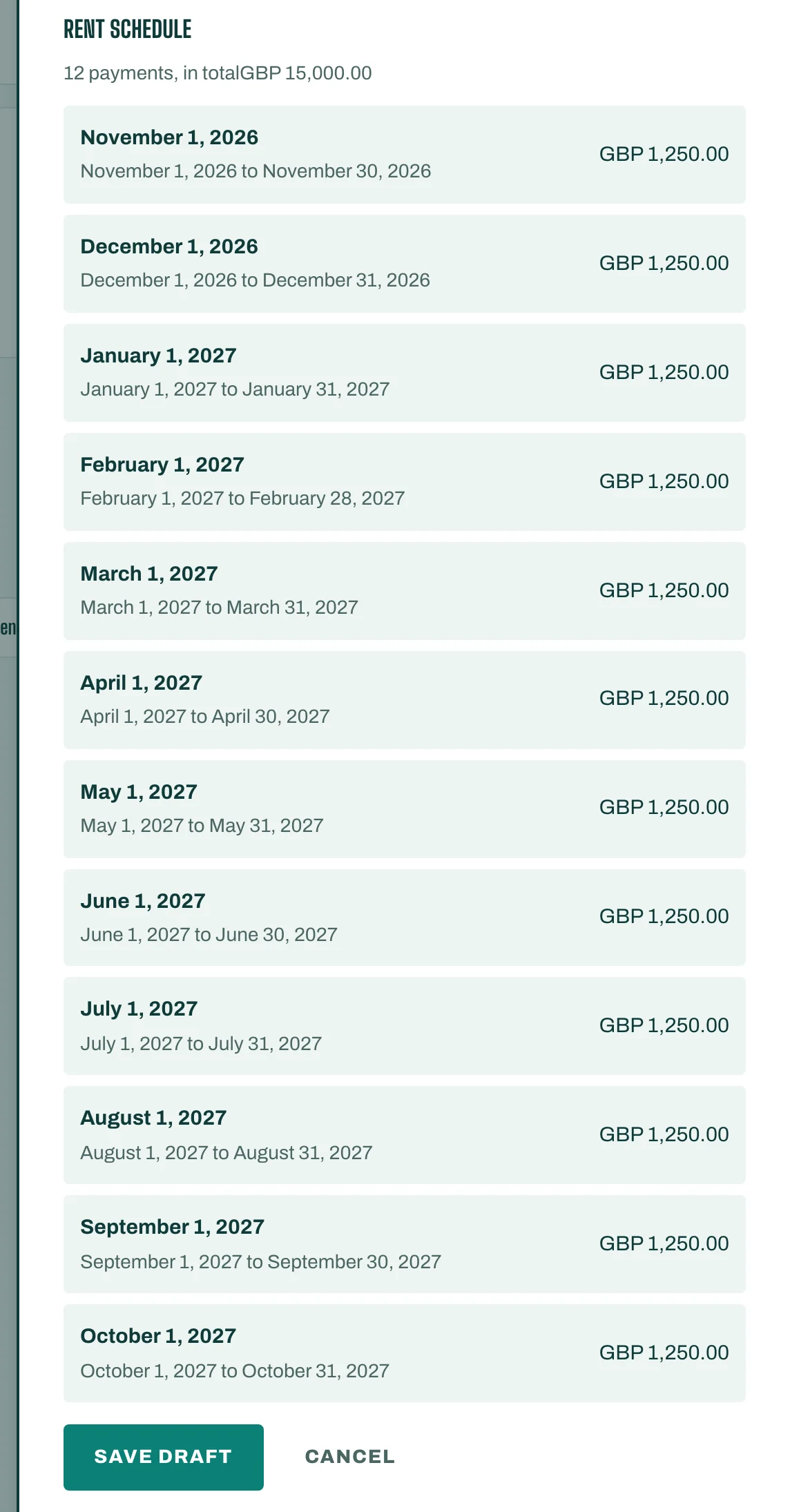
Check the Rent schedule: it lists every payment and the total.
Have it signed
- Send for signature: STAK freezes the lease, signs it for your business, and sends the tenant the portal link from your WhatsApp number (or by SMS). The lease shows Waiting for signature until the tenant signs.
- Tenant signs at the office: enter the Signer's full name, tick The tenant read the lease and agreed to it in front of me., and confirm.
To change a lease you sent, tap Withdraw to edit. You can also Save draft and finish later.
Once signed, the lease is Active and its rent is invoiced on schedule.
The deposit
Under Deposit, tap Record deposit received and choose the Method. It is held as the tenant's deposit, not income.
Good to know
- In Saudi Arabia, the UAE, Qatar, Bahrain, Oman and Kuwait, you can also choose Post-dated cheques. The cheques then appear under Cheques.
- Where a lease must be registered with an official body, Registration tracks its status. The registration itself is done on the official portal.