

Take a table order
Open an order on a table, add dishes with their options, then send them to the kitchen by course.
Open the order
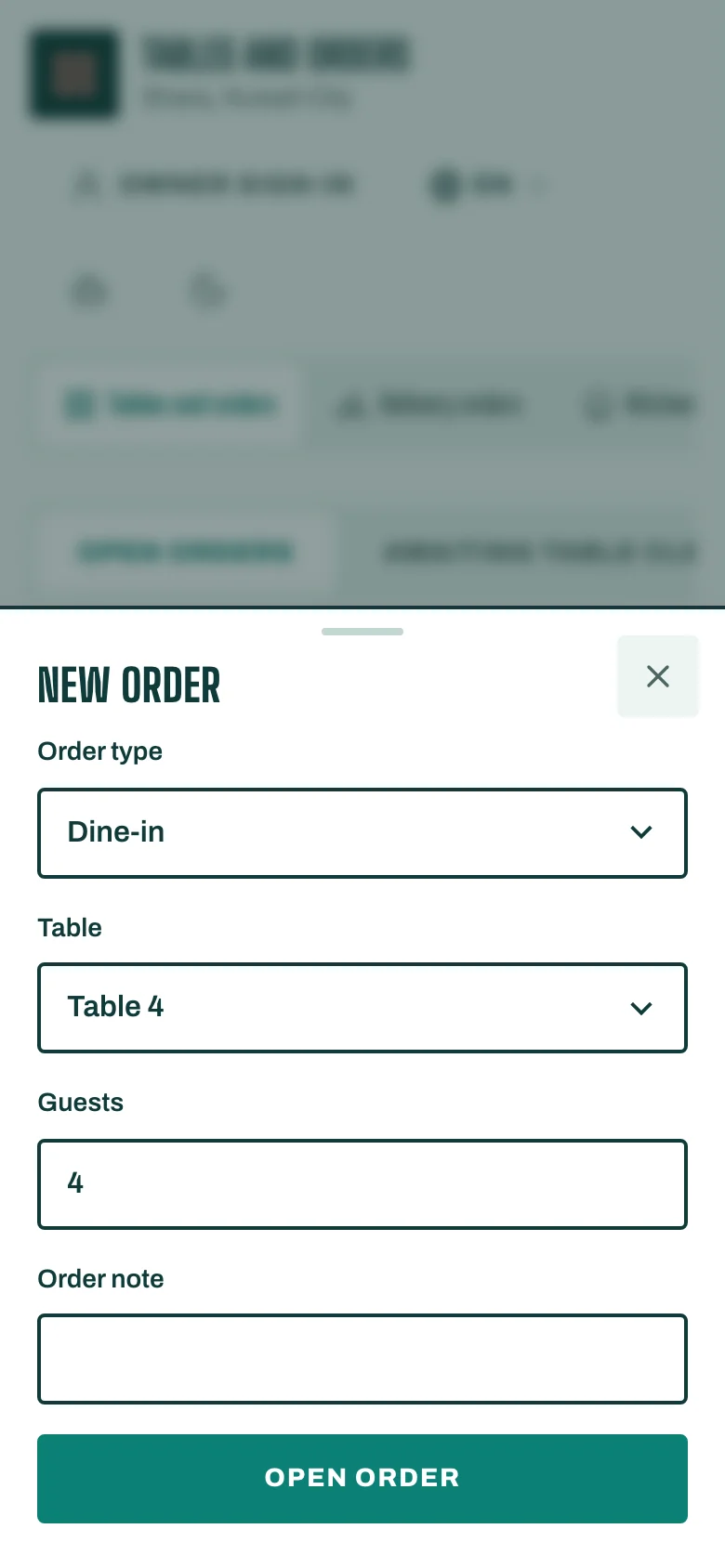
- On Tables and orders, tap a free table, or tap New order.
- Choose the Order type: Dine-in, Takeaway, Delivery, Pickup or the others your business uses. For Dine-in, choose the Table.
- Enter the number of Guests and, if you want, an Order note.
- Tap Open order.
Add dishes
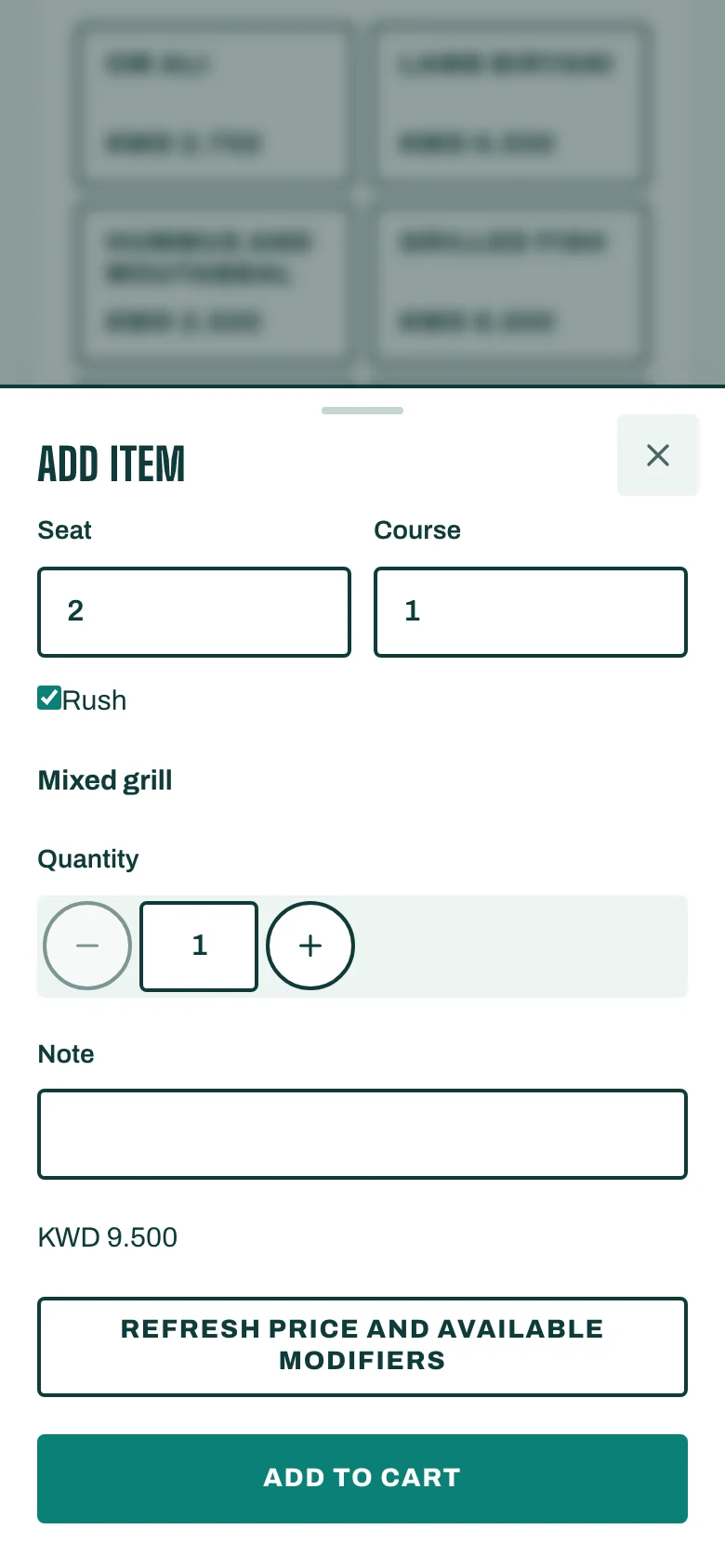
- Under Add item, tap a dish, or type in Search items.
- Set the Seat and the Course for the dish. Tick Rush if the kitchen should make it first.
- Pick the dish's options. If a choice is required, STAK names the group that still needs an answer.
- Add a Note for the kitchen if needed, set the Quantity, then tap Add to cart.
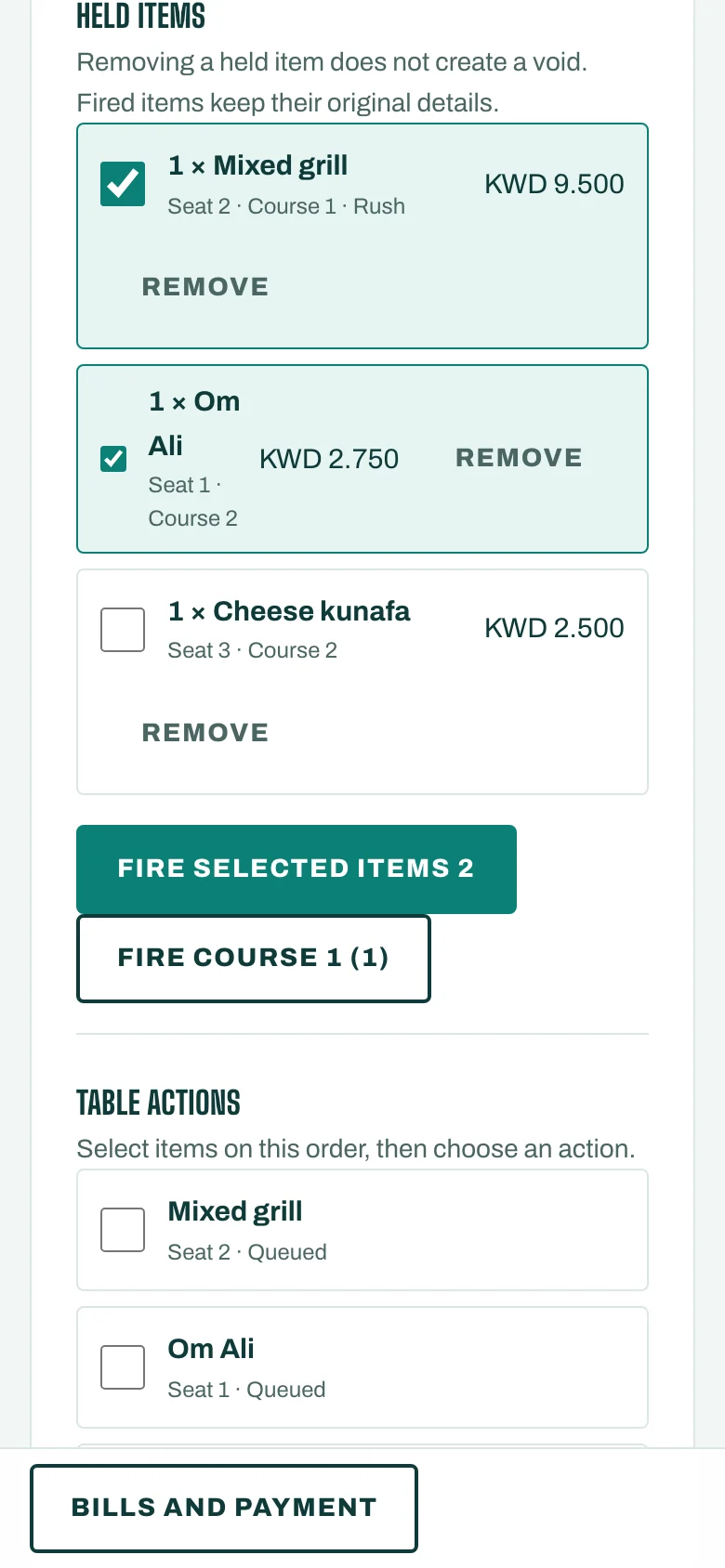
The dish goes to Held items: it is on the order but not yet in the kitchen. To take a held dish off, tap Remove. Removing a held item does not create a void.
Send it to the kitchen
- Under Held items, tick the dishes to send.
- Tap Fire selected items. They move to Sent to kitchen and appear on the kitchen screen.
When the order has more than one course, a button like Fire Course 2 (3) sends the next course on its own.
Good to know
- A sold-out dish can't be added. See Mark a dish sold out.
- If the owner turned on Automatic courses (More, then Courses), each dish takes its menu category's course. You can still change it.
- A drink that needs an age check asks for it on the tab before it is ordered.