

Run the kitchen screen
See every ticket as it arrives, start it, mark it ready and served, and filter by station.
The kitchen screen shows every dish the team sends, from tables, the till and your online store.
Open it
In the menu, tap Kitchen. On a screen used only by the kitchen, keep this page open all day.
Work a ticket
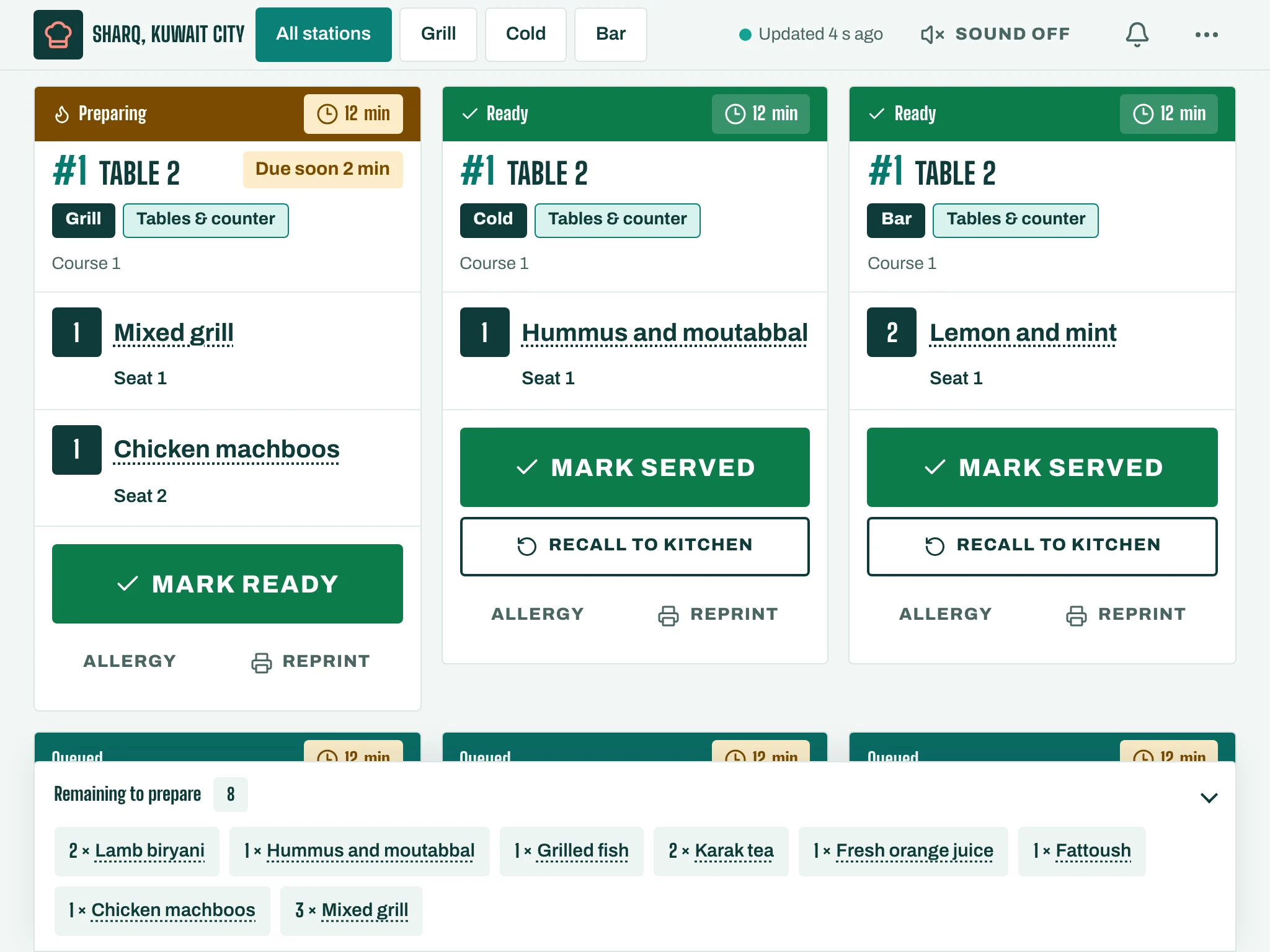
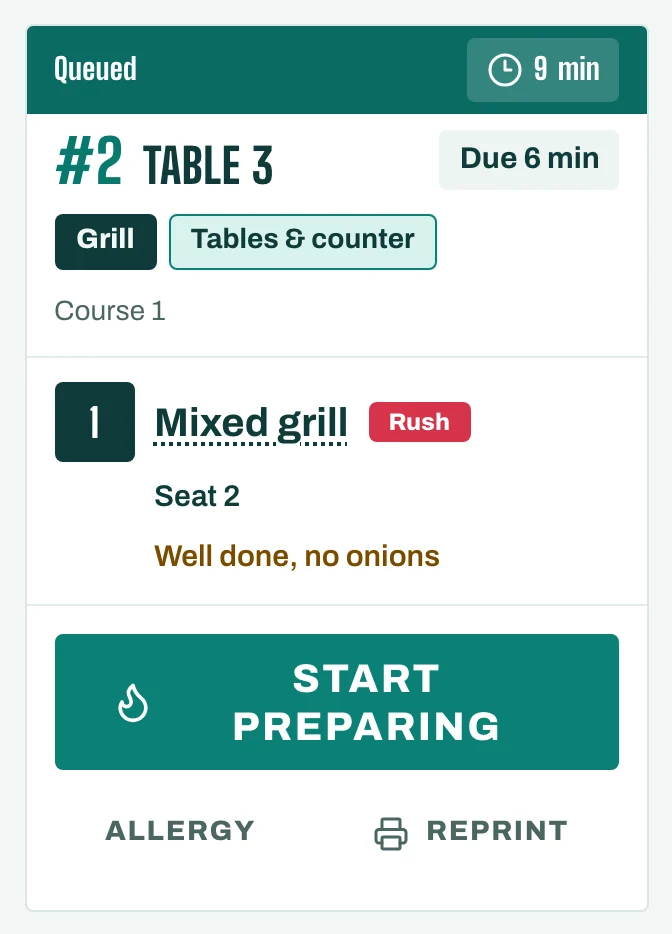
Each ticket shows the table or order type, the seat and course of each dish, notes, allergies and how many minutes it has waited. Rush tickets are marked.
- Tap Start preparing when you begin. The ticket shows Preparing.
- Tap Mark ready when it is done. The floor sees Food ready on the table.
- Tap Mark served once it has left the pass.
To bring a ticket back, tap Recall to kitchen. When the floor cancels a dish, its ticket shows Cancelled: tap Acknowledge cancellation so the team knows you saw it.
Choose what you see
- Pick your Station (or All stations) so each screen shows only its own dishes.
- Remaining to prepare counts every dish still to make, across tickets.
- Tap More: under View, switch between Active tickets and Served today.
Sound
The screen plays a sound for each new ticket. Tap Sound on or Sound off to switch it, and under More choose the Alert sound (Bell, Bright or Low). If the screen asks you to, tap it once to let it play sounds.
When the connection drops
The screen keeps showing the last confirmed state and says Offline. Tickets update again when it reconnects.
Expo
At the pass, open Expo from the menu to see which orders are complete and ready to go out.