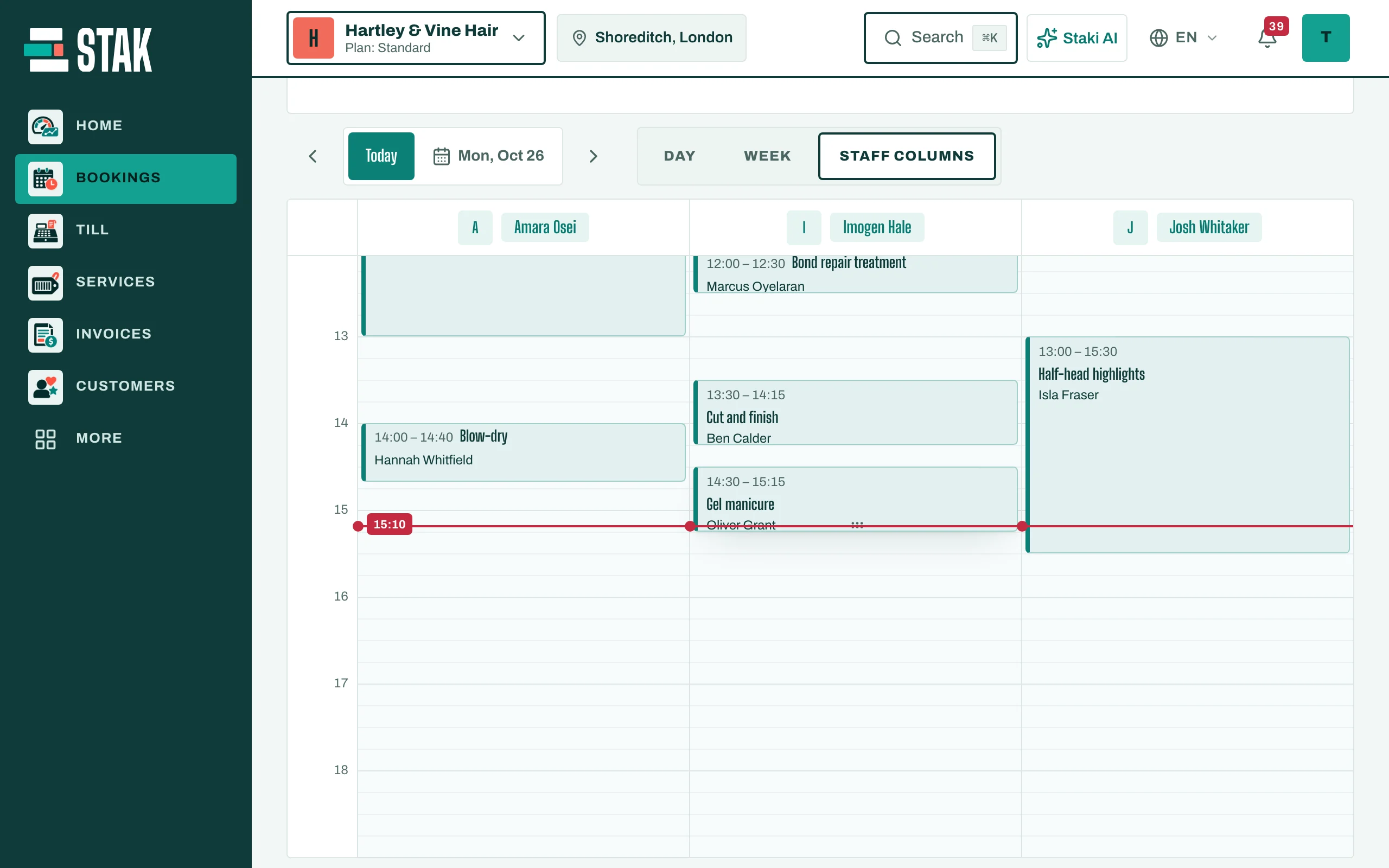

Get started with Bookings
Add your team and your services, then see your day on the calendar.
Bookings is your appointment calendar: for salons, clinics, studios, workshops and anyone who sells time.
Set up the calendar
- Tap Bookings in the menu. You see Bookings and appointments.
- The first time, you see Set up your calendar in two minutes. Tap Add your first team member, then Add your first service.
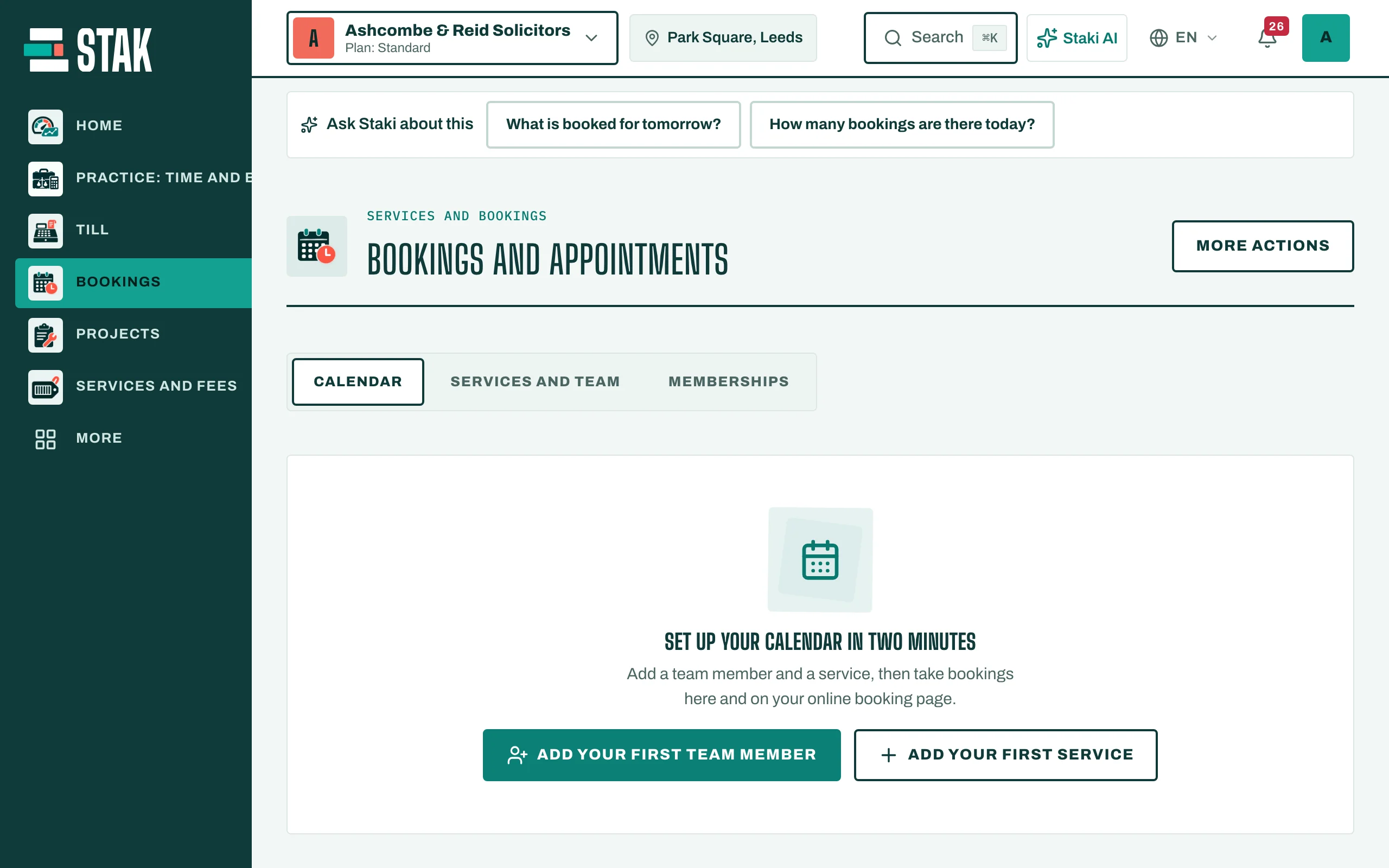
You can add more any time in Services and team.
Add a team member
- In Services and team, tap Add staff.
- Type their name and set their Working days, with Work starts and Work ends.
- Tap Save.
Rooms, chairs and equipment are added the same way (Add room, Add chair, Add equipment), so two bookings never need the same chair at once.
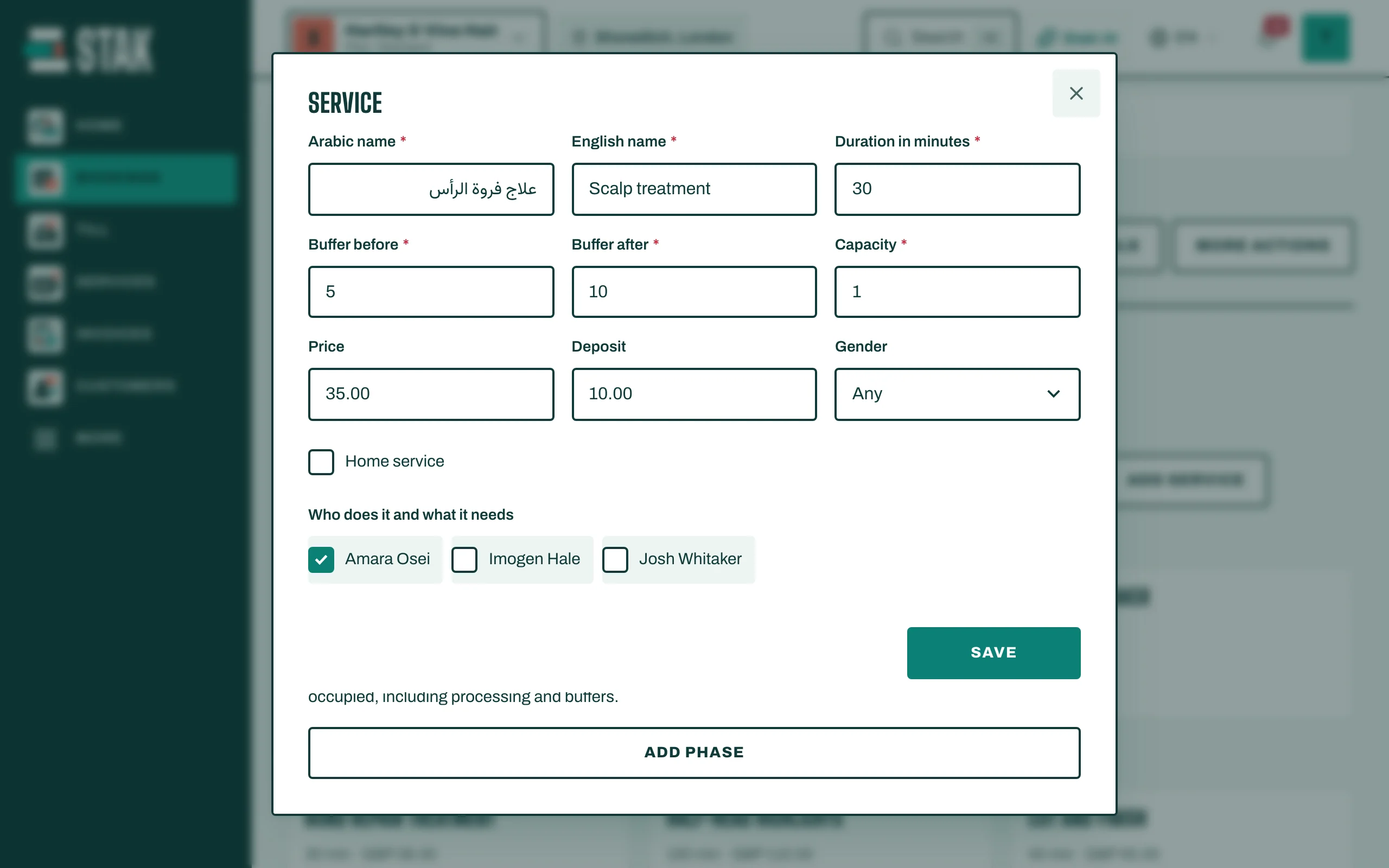
Add a service
- Tap Add service.
- Type the name, the Duration in minutes and the Price.
- If you need time to clean or prepare, add a Buffer before or Buffer after.
- Add a Deposit if customers should pay part in advance.
- Under Who does it and what it needs, choose the staff and resources.
- Tap Save.
Read the calendar
Open Calendar. Switch between Day, Week and Staff columns under View. Move with Today, Tomorrow, Previous day and Next day, or Pick a day.