

Deposits and no-shows
Take a deposit when customers book online, and set a fair cancellation and no-show policy.
Take deposits online
Deposits go to your own payment account.
- In Online booking and front desk, open Booking page and go to Deposits.
- Choose Your payment account. If none is connected, connect yours in the payment settings first.
- Approve the fees shown: tick I approve these fees for booking deposits.
- Tick Collect each service's deposit online to confirm the booking, and set how long to Hold the time for payment (minutes).
- Tap Save.
Each service's deposit amount is set on the service itself (see Get started). At checkout, a paid deposit is taken off the bill.
Set your policy
Under Cancellation and no-show policy:
- Free cancellation until (hours before) the appointment,
- Late cancellation fee (% of price),
- No-show fee (% of price),
- and whether Customers may cancel from the booking page.
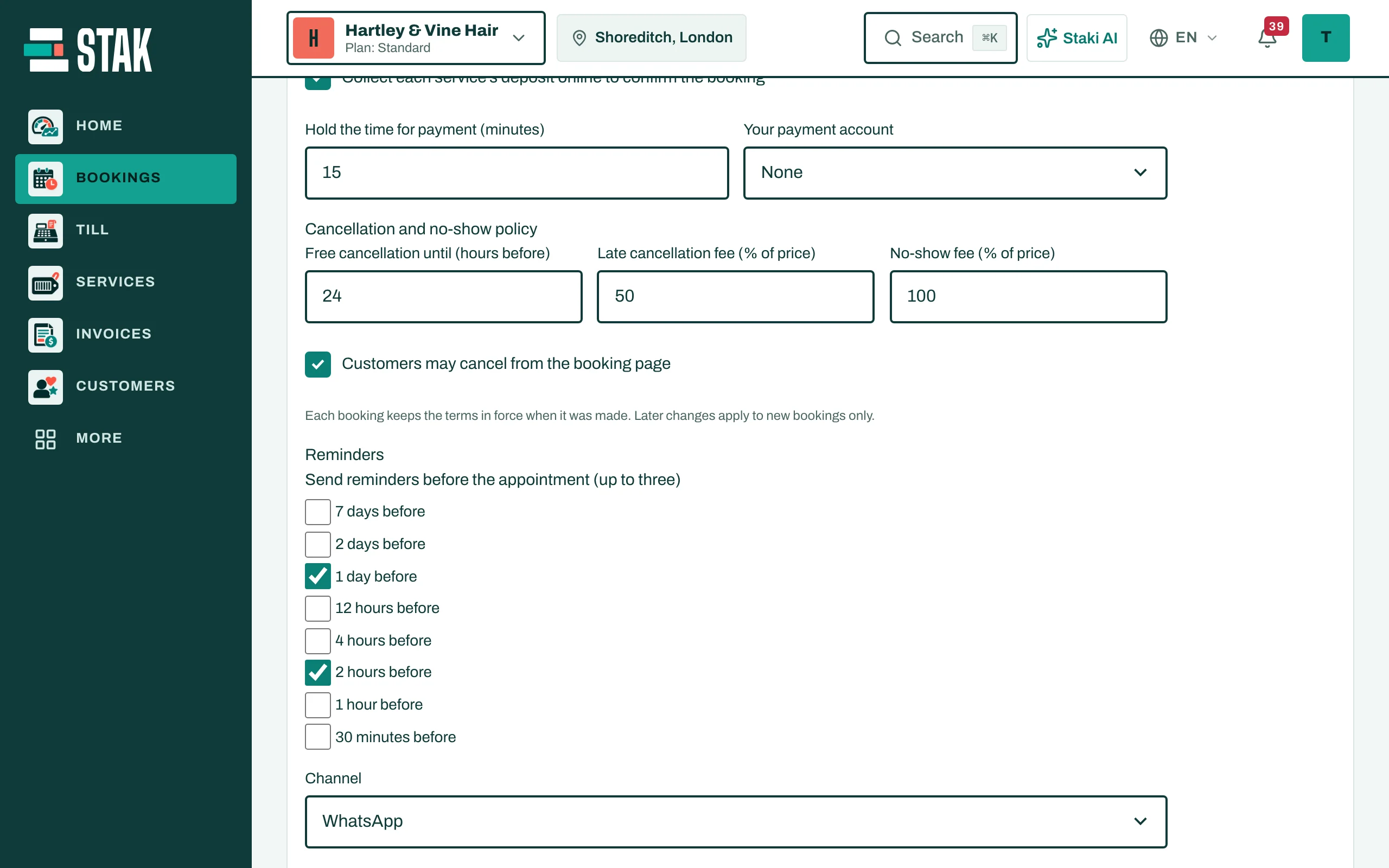
Each booking keeps the policy that applied when it was made; changes apply to new bookings only.
Settle deposits
When a customer cancels late or doesn't come, the deposit is kept as the fee, or part of it is refunded, by your policy. To settle lists every Deposit to refund and every Fee not covered by the deposit.