

Get started with Invoices
Add your seller details once, then create, review and issue your first invoice.
Invoices takes you from the first draft to the final payment in one place. Every issued invoice is posted to your books automatically.
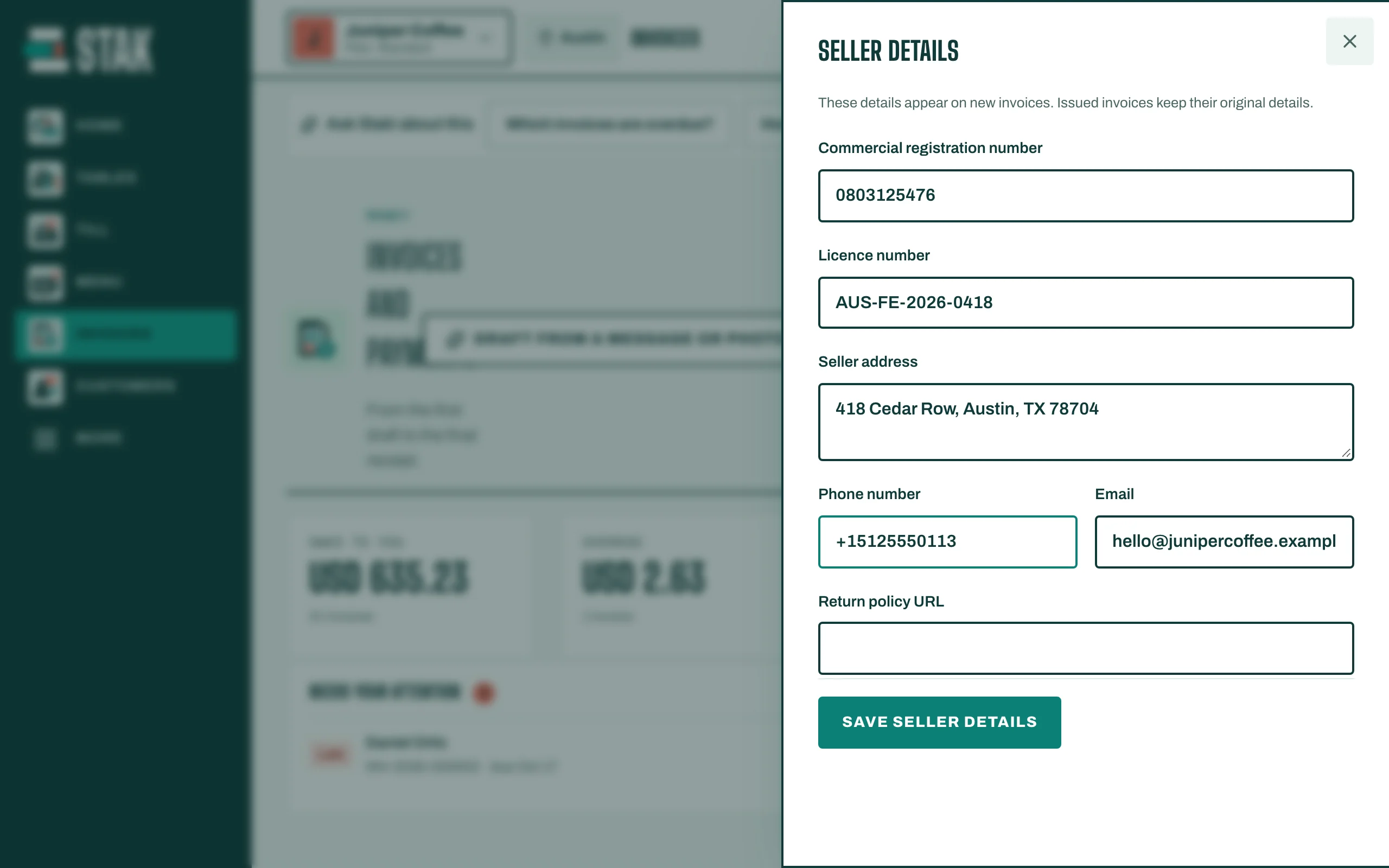
Add your seller details (once)
- Tap Invoices in the menu. You see Invoices and payments.
- Tap Seller details. Fill in your business details, such as the registration number and the seller address.
- Tap Save seller details. These details print on every new invoice.
Create your first invoice
- Tap New invoice.
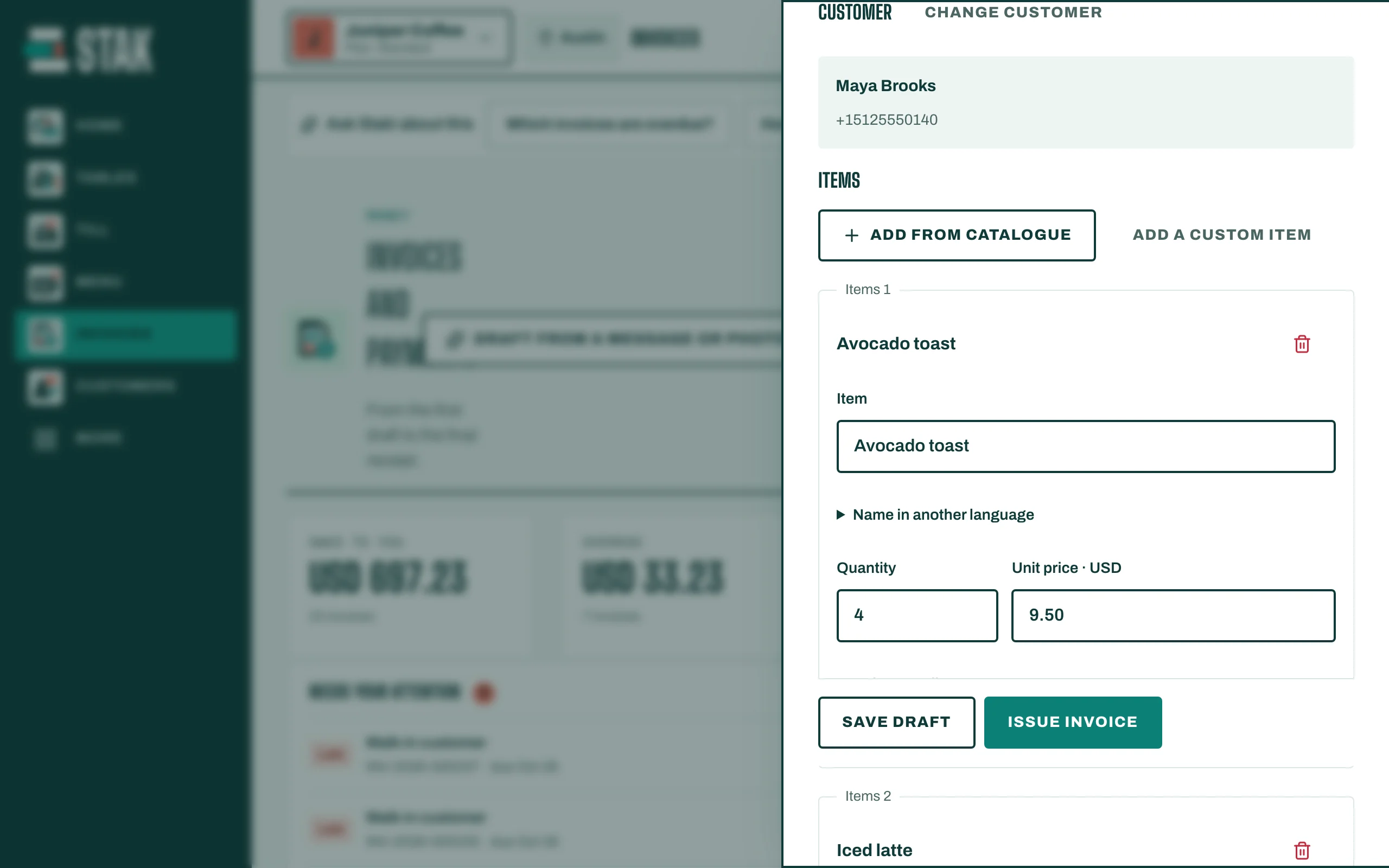
- Under Customer, search by name or phone. If the customer is new, tap Add customer, fill in the details, and tap Save and select customer.
- Under Items, tap Add from catalogue to pick your products, or Add a custom item for anything else. Set the Quantity and Unit price.
- For a due date, discounts, a delivery fee or notes, open Dates, discounts and details.
- Tap Save and review. You see the Invoice draft with its total.
Issue it
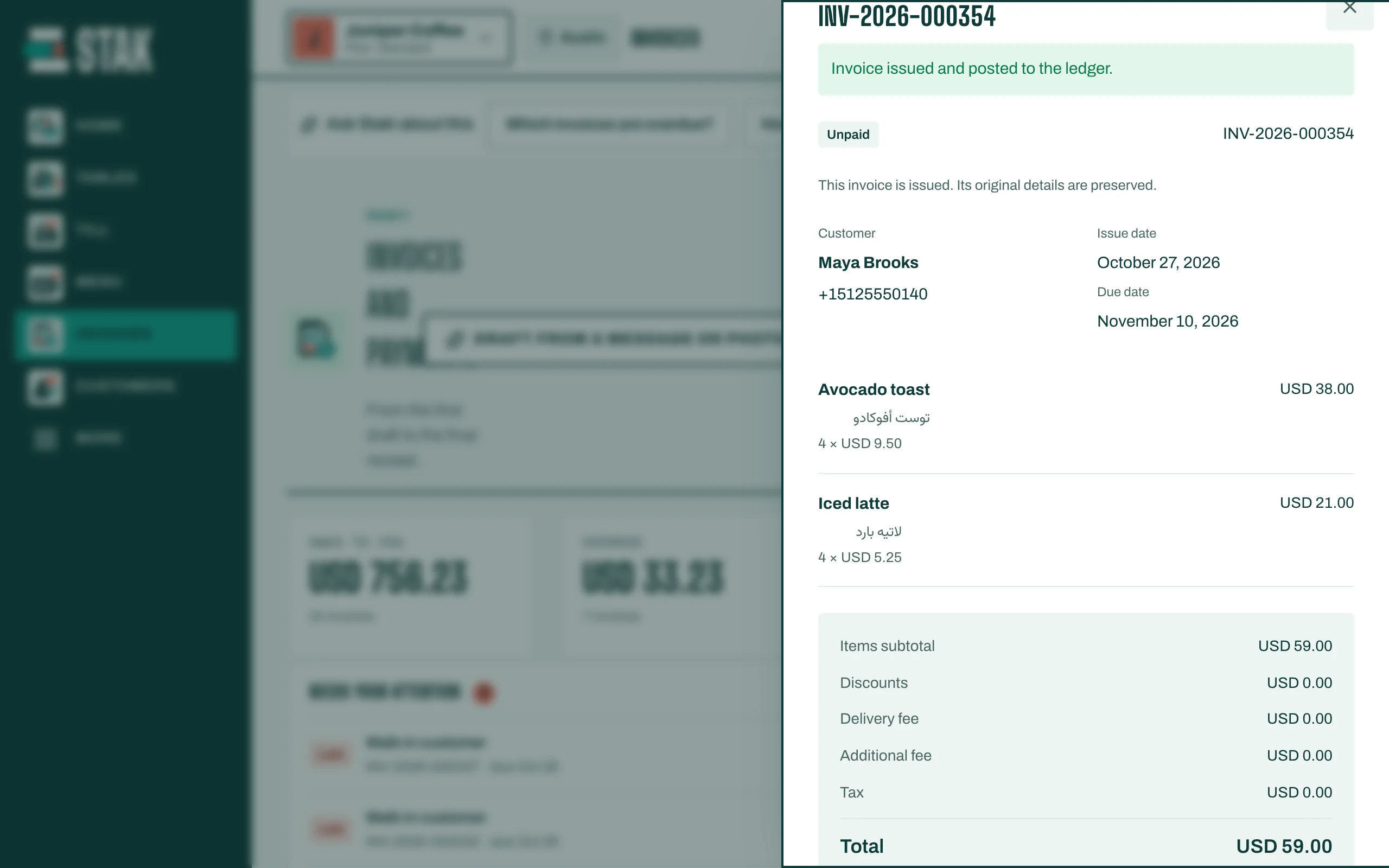
- Check the customer, the items and the Total.
- Tap Issue invoice. You see Invoice issued and posted to the ledger.
Once issued, an invoice can't be edited: its details are kept as they were. If something is wrong, void it and issue a new one (see Void an invoice or give a credit).
Where your country requires it, STAK issues the invoice as a tax invoice or simplified tax invoice automatically.